






















We’ve redesigned the automation canvas to deliver a cleaner, more intuitive user experience.
You can arrange and customize the canvas however you prefer, making it easier and more enjoyable to build your automations.
Here are the options available in the automation canvas:
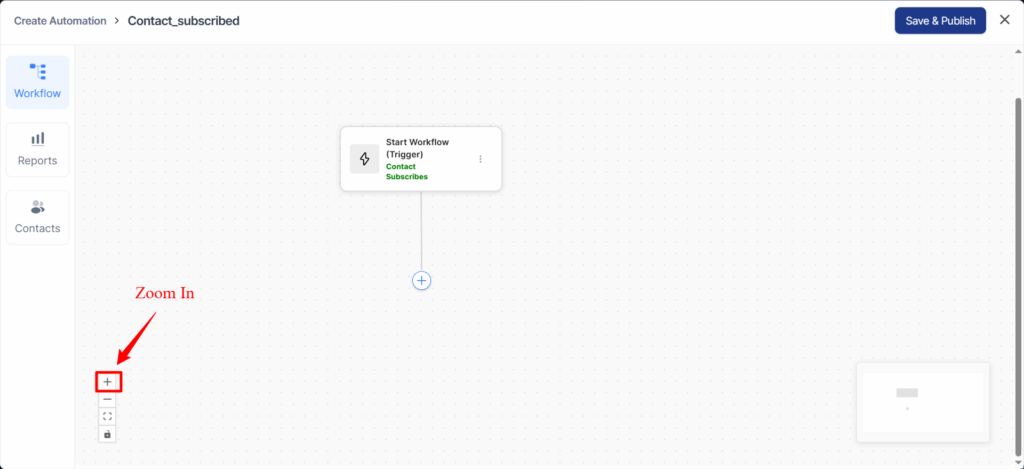
1. Zoom In
Click on the plus icon to zoom in to the automated sequence you’re building.
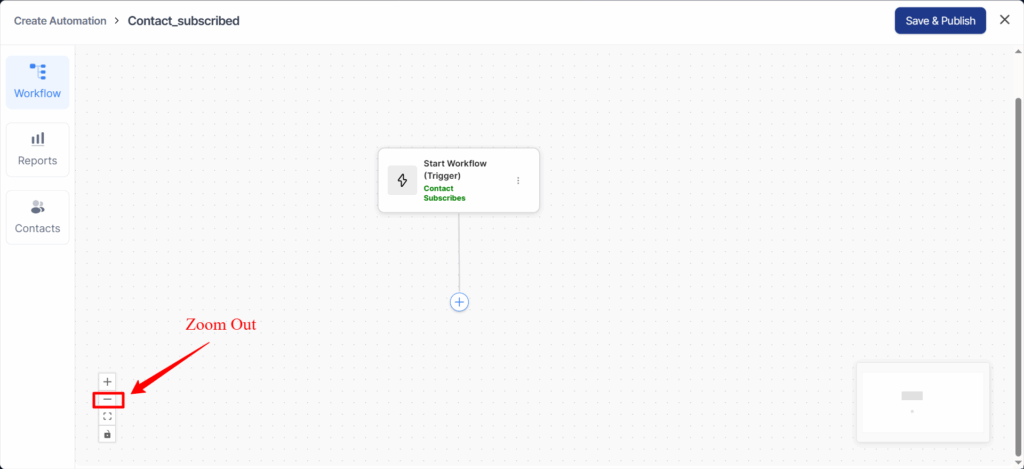
2. Zoom Out
Click on the minus icon to zoom out to the automation you’re building.
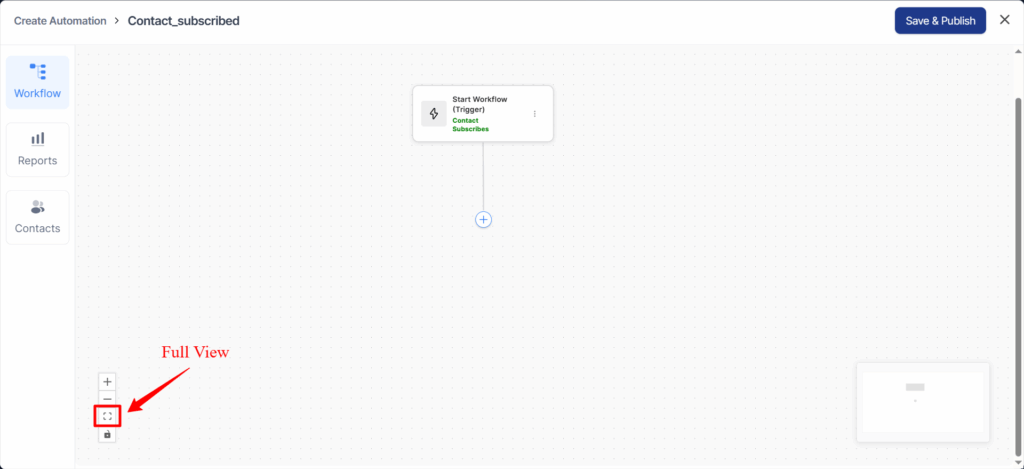
3. Full View
The full view option shows the entire automation on a single screen.
If your automation is quite long, it zooms out and covers most of the steps in your sequence.
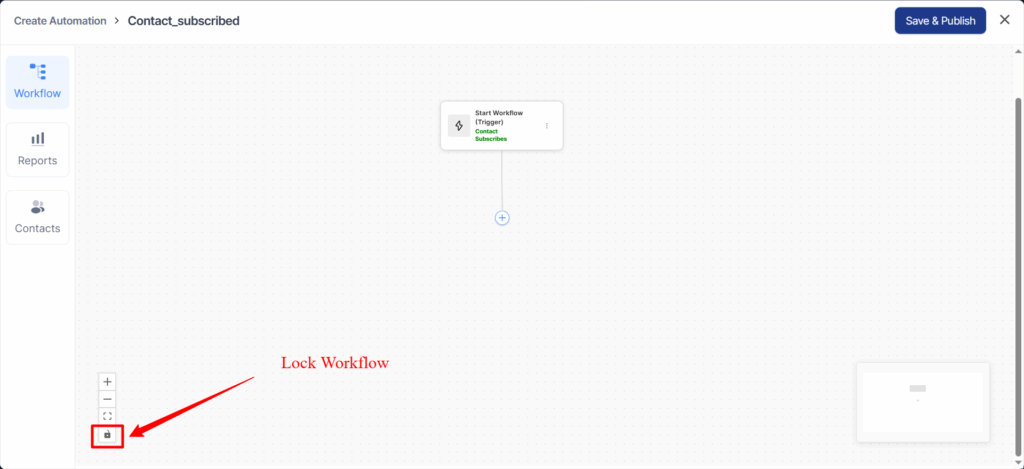
4. Lock Workflow
The Lock Workflow option prevents any accidental changes to your automation.
When enabled, all nodes, connections, and canvas actions become read-only, ensuring your workflow stays exactly as it is.
This is especially useful when your automation is complete and you want to avoid unintentional edits while reviewing or presenting it.
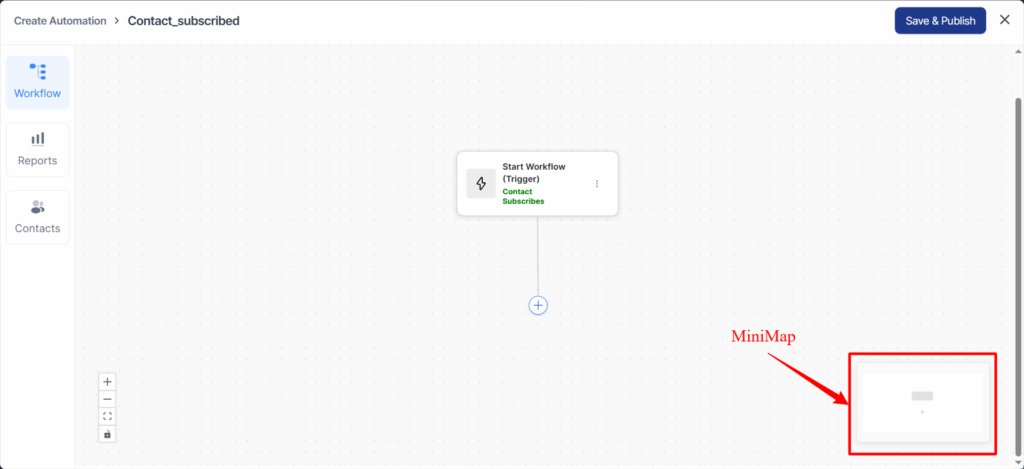
5. MiniMap
The MiniMap provides a small, visual overview of your entire automation canvas.
It displays all your steps—triggers, actions, conditions, goals, and more—using color-coded indicators so you can quickly understand your workflow structure at a glance.
You can pan or zoom directly inside the minimap, making navigation easier when working with large or complex automations.
Its compact layout sits neatly in the bottom-right corner of the canvas for quick access without interrupting your workspace.
That’s it!
This is all about the canvas in FunnelKit Automations’s next-gen automation builder.