






















You can specify rules when setting up conditional actions in automations.
The actions here will be performed only if the specified condition holds true. You can think of an if/then/else rule condition.
You can add multiple conditions (nested if-else statements) to achieve your business use cases.
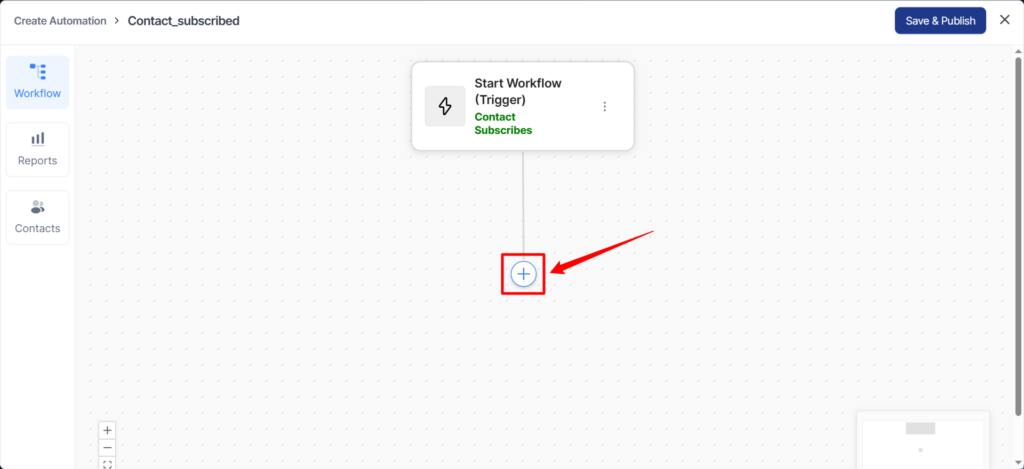
To select the condition, click on the (+) button under your event.
Then, click on Condition.
Just like this Condition you’ve selected.
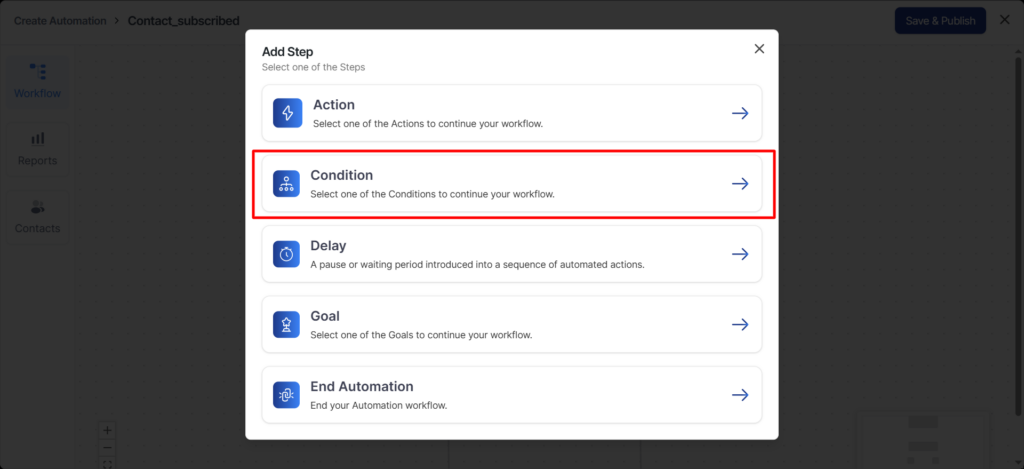
Click on the Condition node to set your rules.
I will create a simple rule to help you understand how the Condition node works.
Rule:
When a new contact is added:
If the email does not contain @bus, the automation will add the contact to the “not bus” list.
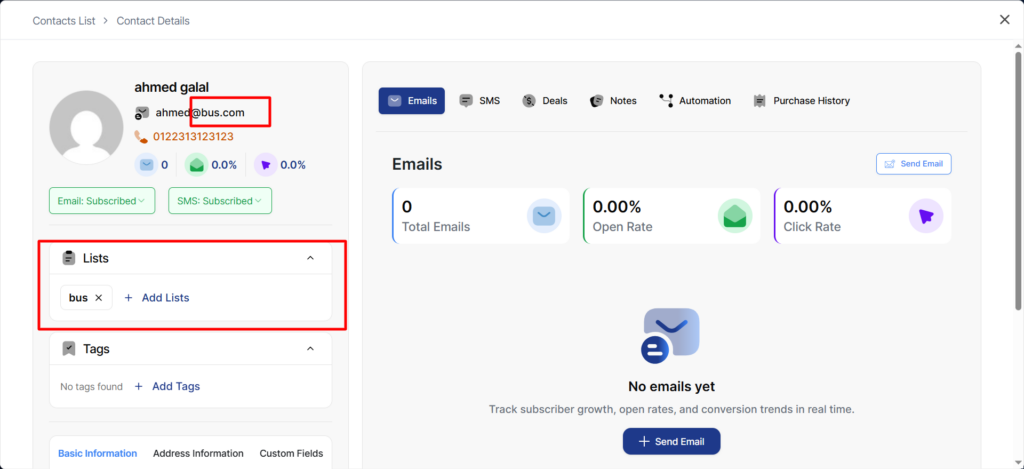
If the email contains @bus, the automation will add the contact to the “bus” list.
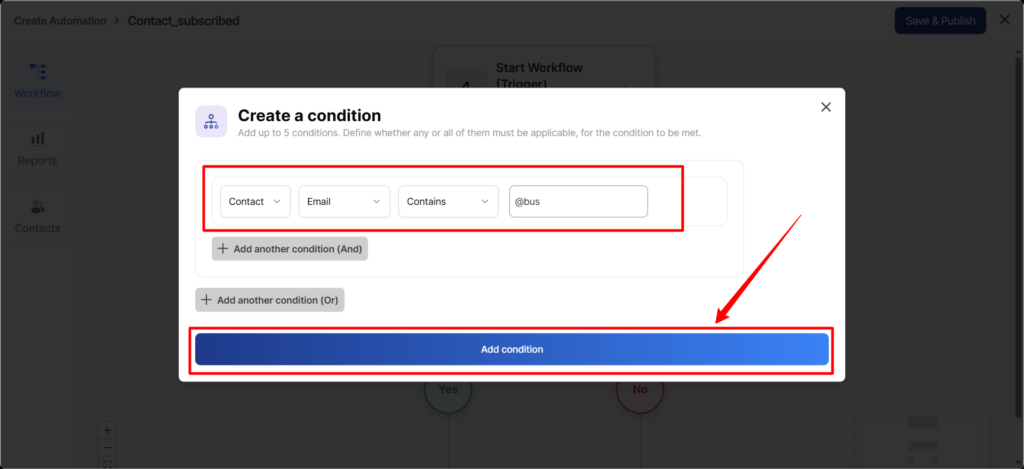
If the email does not contain @bus, the automation will add the contact to the “not bus” list.
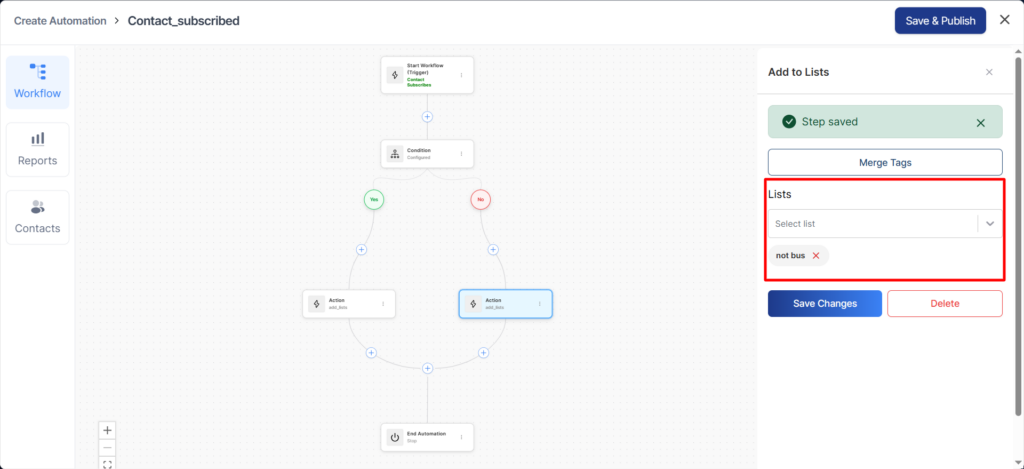
If the email contains @bus, the automation will add the contact to the “bus” list.
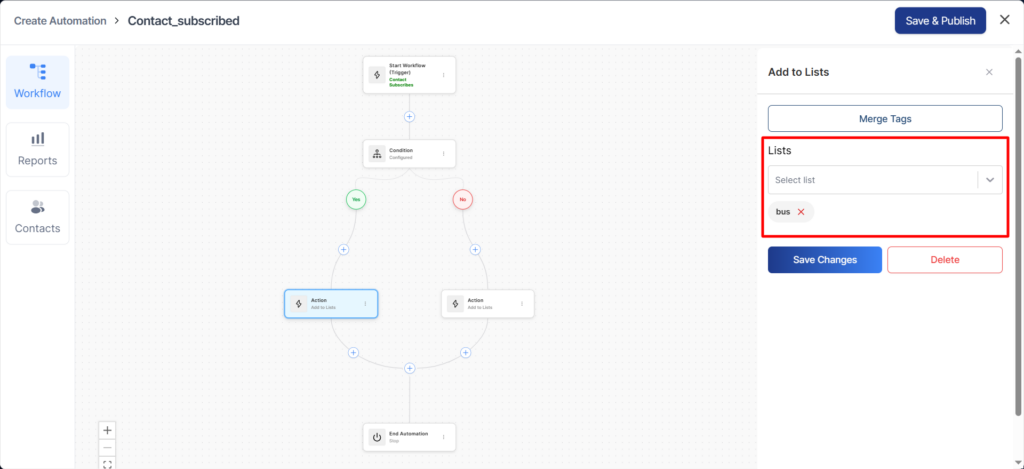
like this in yes.
like this in no.
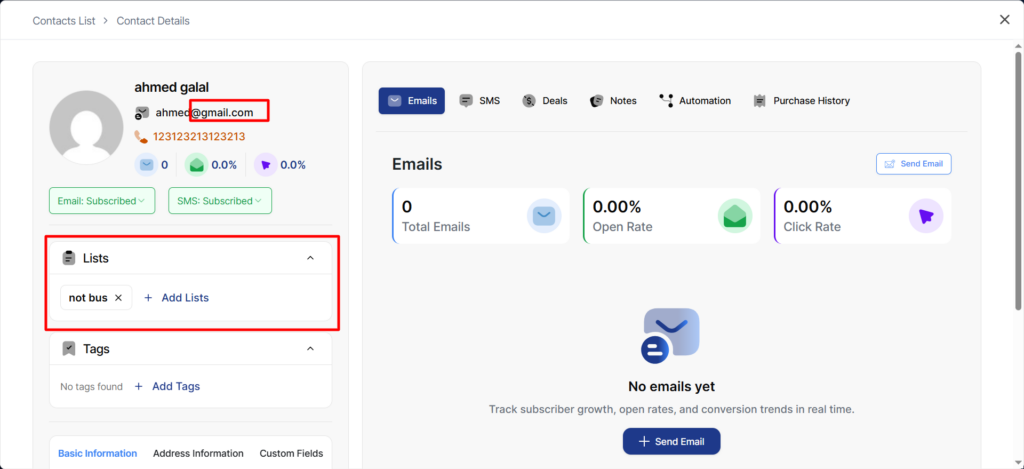
Congratulations! Your automation works perfectly.
This is just one use case. You can define multiple conditions as per your requirements and set up different workflows in QuillCRM Automations.