






















Setup Instructions
Follow these steps to configure bounce handling for Elastic Email:
Step 1: Get Your Webhook URL
- Go to QuillCRM → Settings → SMTP→ Bounce Handling
- Find the Elastic Email section
- Copy the webhook URL provided
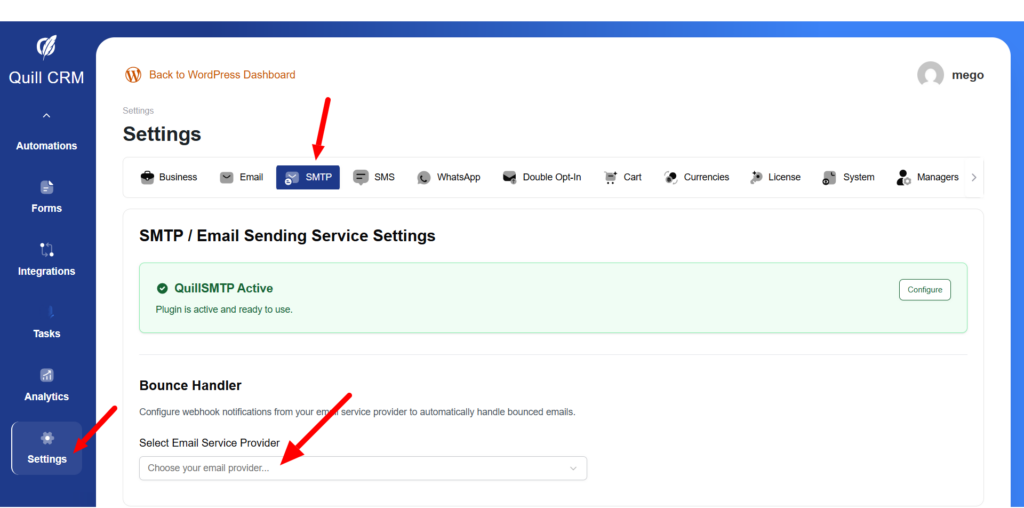
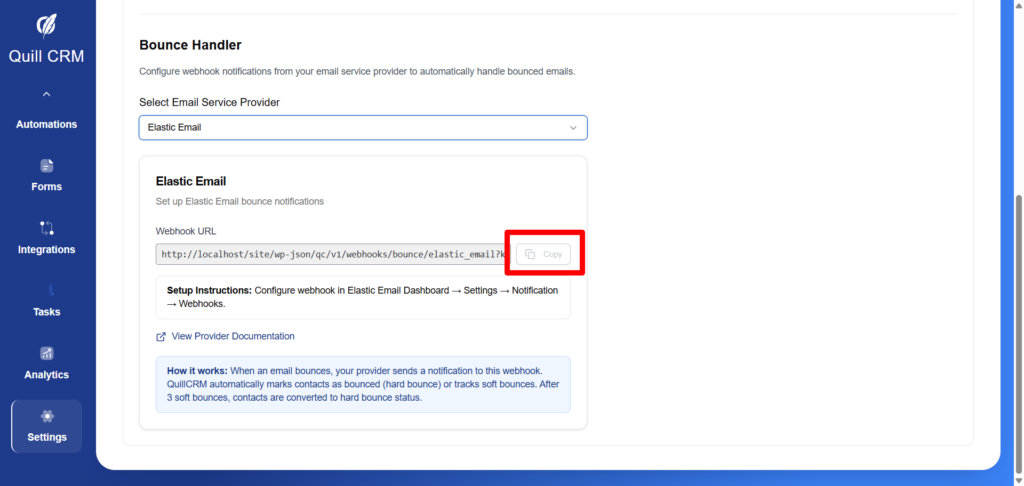
Your webhook URL will look like:> https://yoursite.com/wp-json/qc/v1/webhooks/bounce/elastic_email?key=your_security_key
Step 2: Configure Elastic Email Dashboard
- Log in to your Elastic Email Dashboard
- Navigate to Settings → Webhooks
- Click Create Webhook
- Configure the webhook:
| Field | Value |
|---|---|
| Webhook URL | Paste the webhook URL from Step 1 |
| Notification Type | HTTP POST |
| Events | Select: Bounced, Error |
- Click Save
Bounce Events Handled
| Elastic Email Event | Bounce Type | QuillCRM Action |
|---|---|---|
| hard_bounce | Hard | Mark as bounced immediately |
| soft_bounce | Soft | Track; convert after threshold |
| bounced / bounce | Auto-detected | Analyzed by error code |
| blocked | Hard | Mark as bounced |
| rejected | Hard | Mark as bounced |
| error | Auto-detected | Analyzed by error details |
Bounce Category Detection
Elastic Email includes category information that QuillCRM uses:
| Category | Bounce Type |
|---|---|
| hard, hardbounce, permanent | Hard Bounce |
| soft, softbounce, temporary | Soft Bounce |