






















Export your contacts for backup, analysis, or use in external tools.
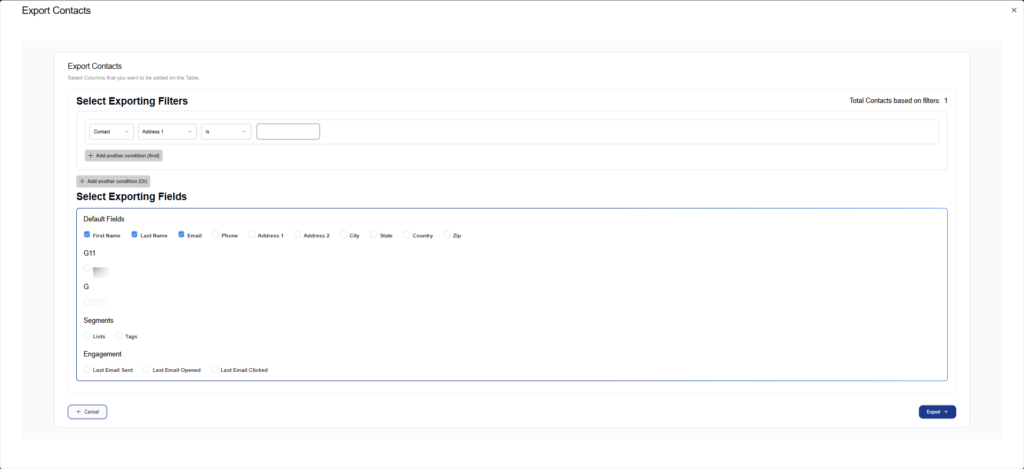
Exporting Features:
Select Exporting Filters:
- Build custom filter conditions using AND/OR logic
- Filter by Contact, Address, Tags, Lists, and other fields
- Add multiple conditions to precisely define which contacts to export
- View total contacts matching your filters in real-time
Select Exporting Fields:
The export dialog allows you to choose which data fields to include:
Default Fields:
- First Name
- Last Name
- Phone
- Address 1
- Address 2
- City
- State
- Country
- Zip
Segments:
- Lists
- Tags
Engagement Data:
- Last Email Sent
- Last Email Opened
- Last Email Clicked
To export contacts:
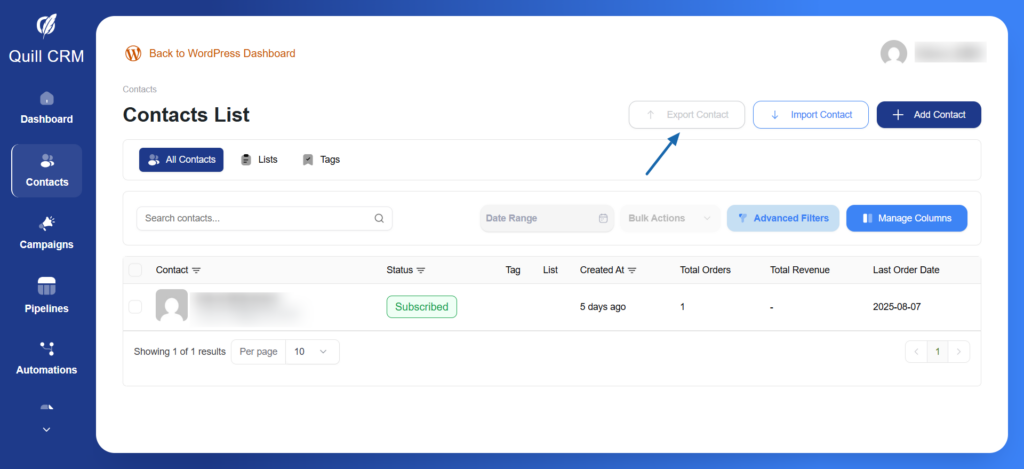
- Click the “Export Contact” button
- In the “Select Exporting Filters” section, set up your filter conditions (or leave empty to export all)
- In the “Select Exporting Fields” section, check the boxes for the fields you want to include
- Click “Export” to download the CSV file
The exported CSV file can be opened in Excel, Google Sheets, or imported into other platforms.