






















Merge tags are the smart personalization tags that we can use to get dynamic data values. You can personalize your emails by using merge tags in QuillCRM Automations.
QuillCRM Automations offers various merge tags related to email, user information, order items, cart data, order data, and so much more.
You can find merge tags in Automations and Broadcasts.
In this documentation, you’ll learn how to use merge tags when creating your email in a rich text editor and drag-and-drop builder.
I will simplify it to explain how to use merge tags in automation.
Example Automation:
Action: Send an email containing the cart recovery URL ({{abandoned_cart:url}})
Trigger: Abandoned Cart
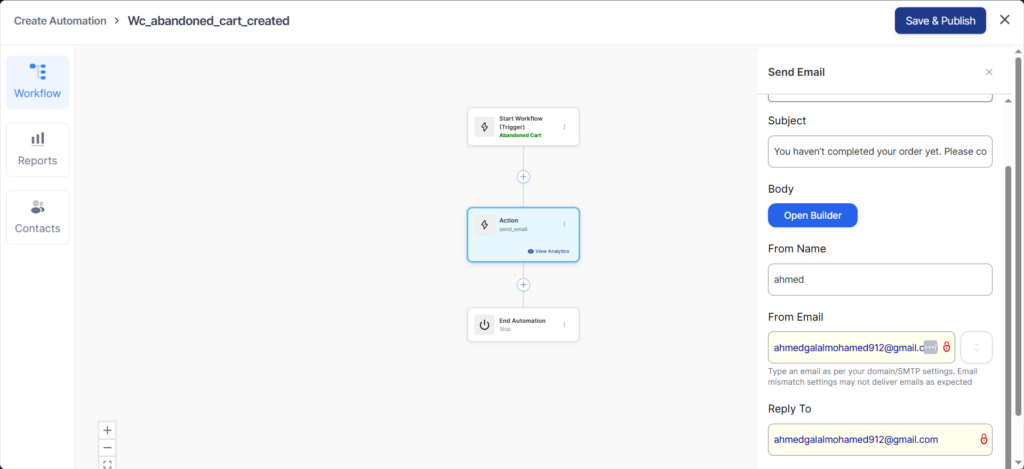
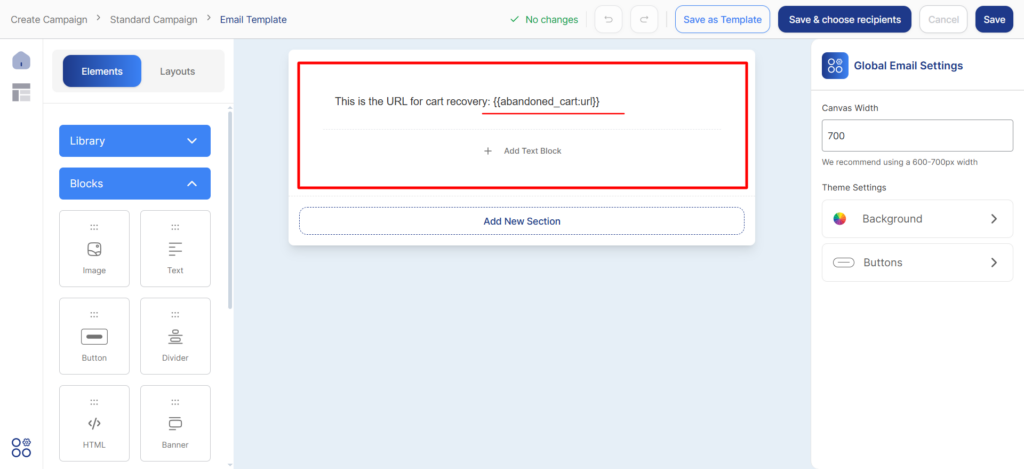
This is the email builder, and in the email body, I will include the cart recovery URL.
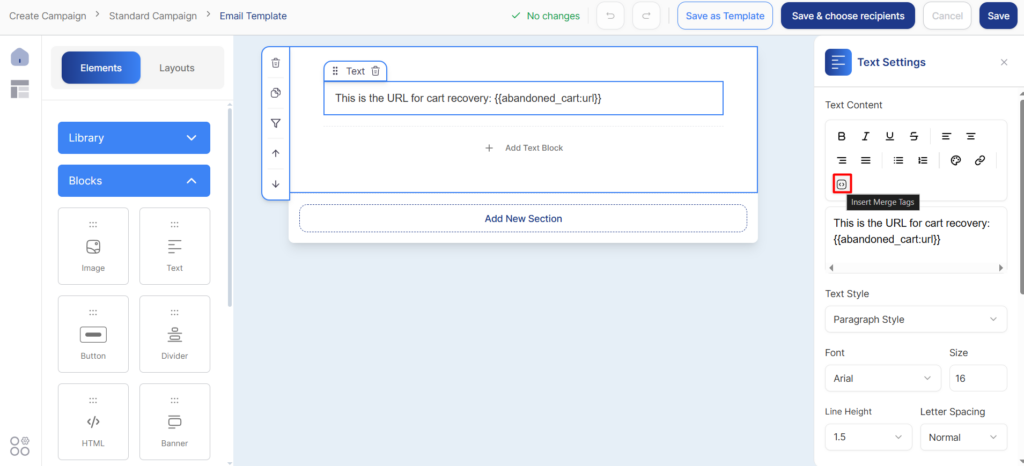
Click on the icon shown in the image below to open the merge tags pop-up.
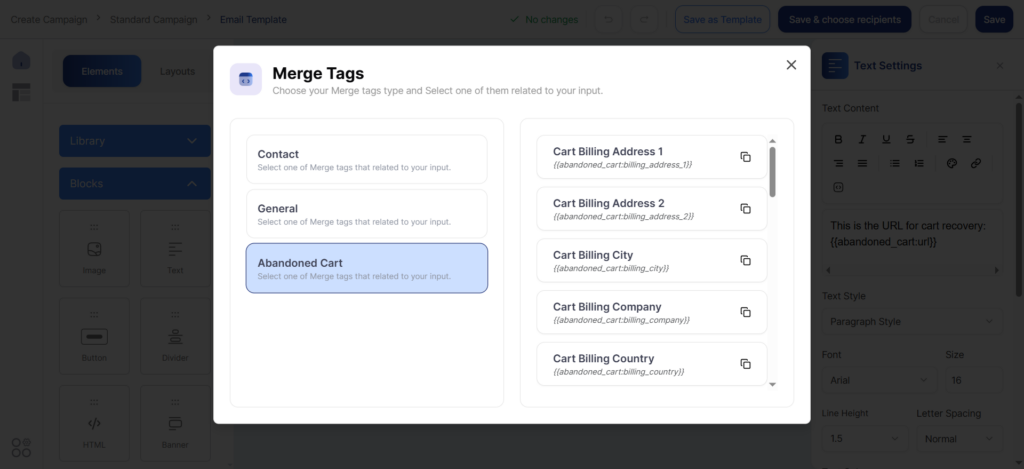
This is the pop-up window. You can click the copy icon and paste the merge tag into any text field or component in the email builder.
To trigger this automation, go to WooCommerce and create an order, but do not complete the checkout. After 2 minutes, the automation will process the steps—in this case, it will send an email containing the cart recovery link.
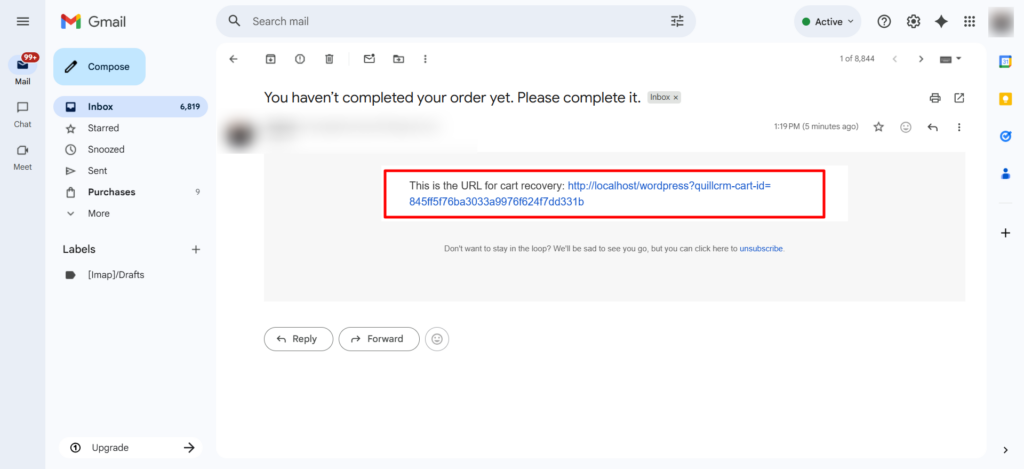
Clicking this link will take you to the checkout page.
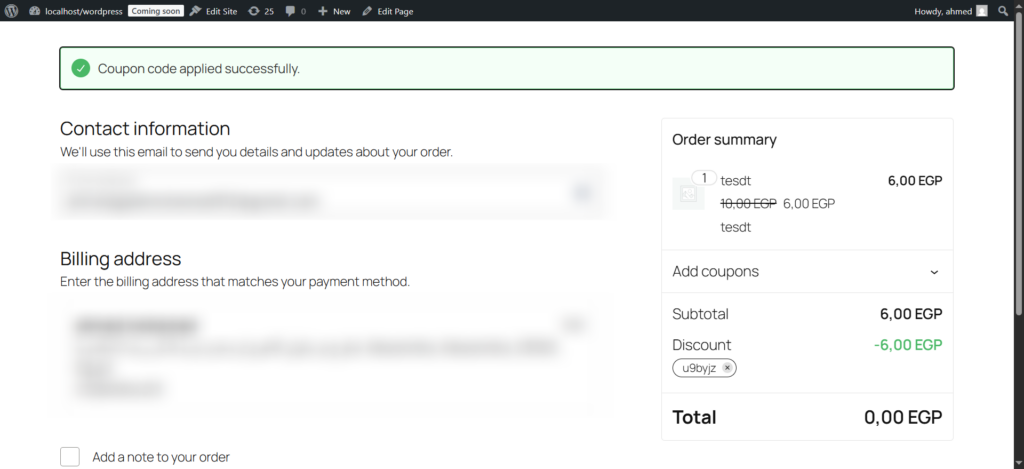
Congratulations! Your automation works successfully.