The Deal Details page allows you to view and manage all information related to a specific deal.
From here, you can track progress, update and view custom fields, add activities, and review recent activities taken on this deal
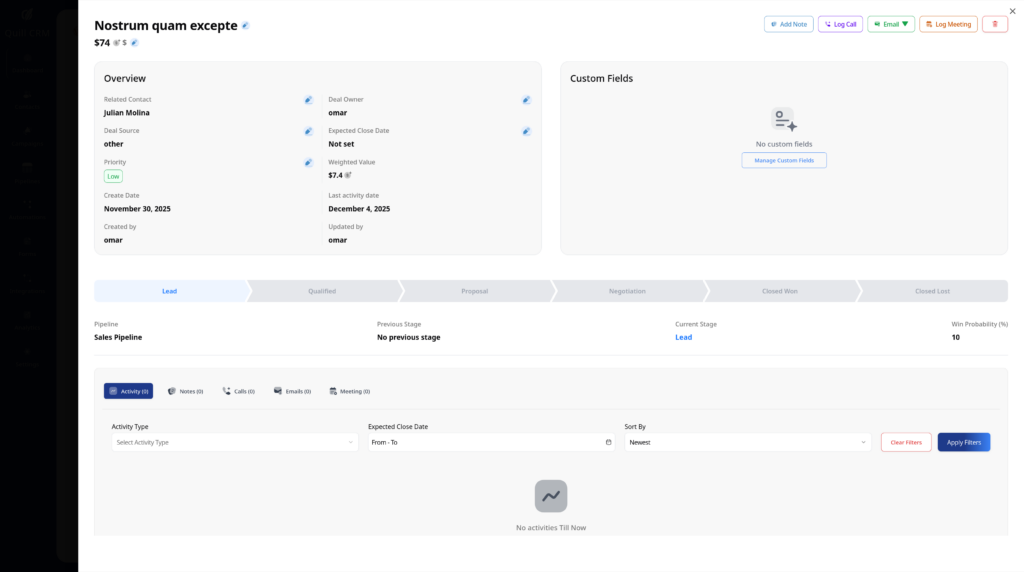
The Deal Details page is divided into several sections that help you manage and track all information related to a deal:
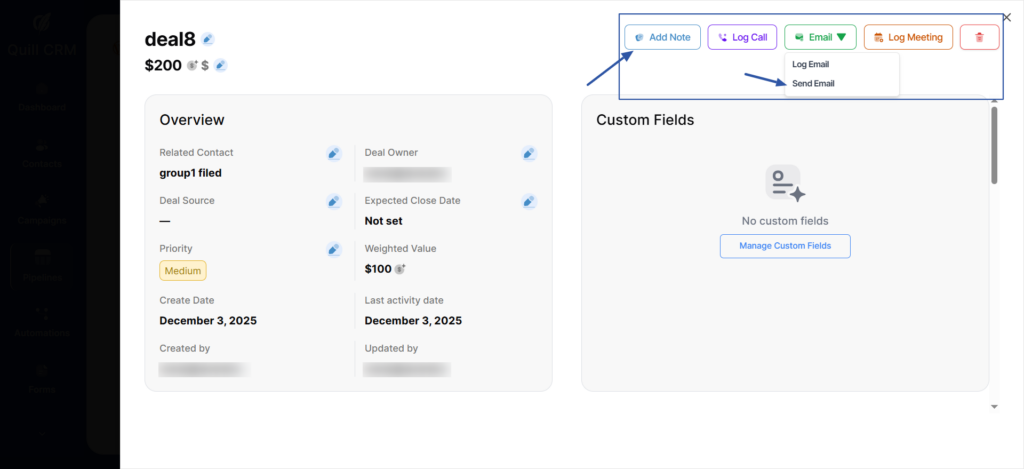
At the top of the page, you will find the Activity Actions section, where you can quickly add notes, log calls, log meetings, or any action related to this deal.
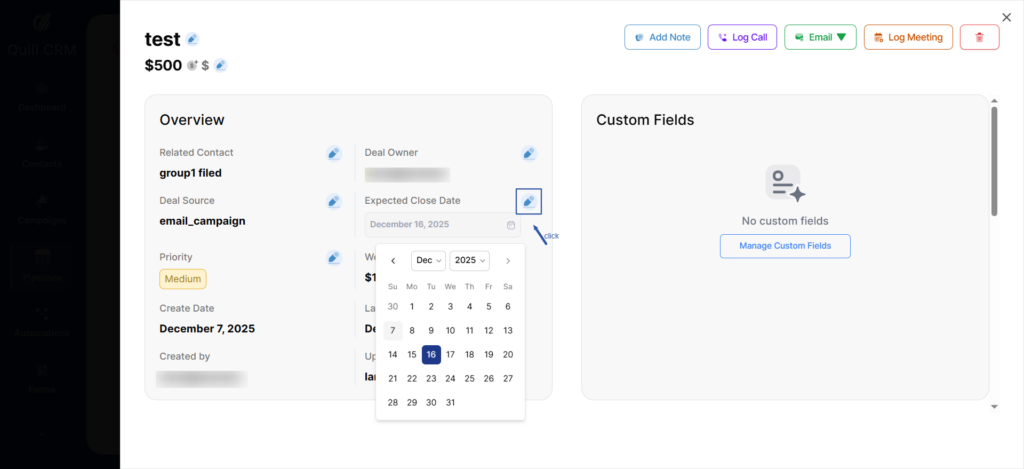
The Overview section provides a quick summary of the deal’s main information.
From here, you can view essential details that help you understand the status and progress of the deal at a glance.
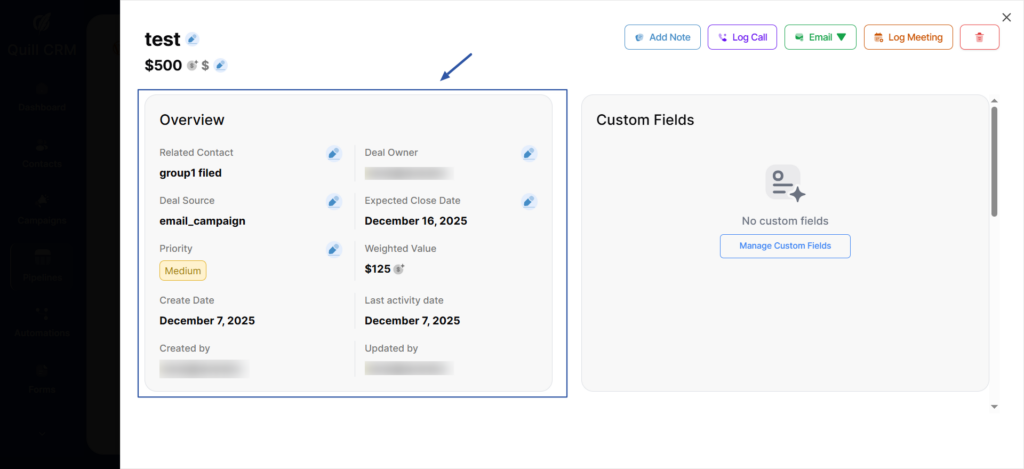
You can also update the information displayed in the Overview section at any time.
Just click the Edit icon to modify the deal details, then save your changes.
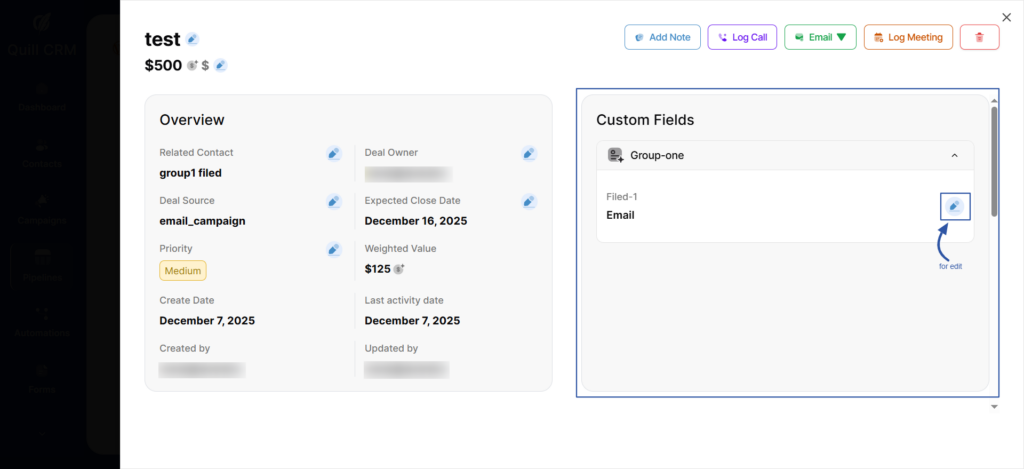
You can also find the Custom Fields section, which contains all additional fields created for the deal.
These fields allow you to store extra information according to your business needs, such as priority, product type, source of lead, or any other specific data.
If custom fields already exist, they will be displayed in this section like this.
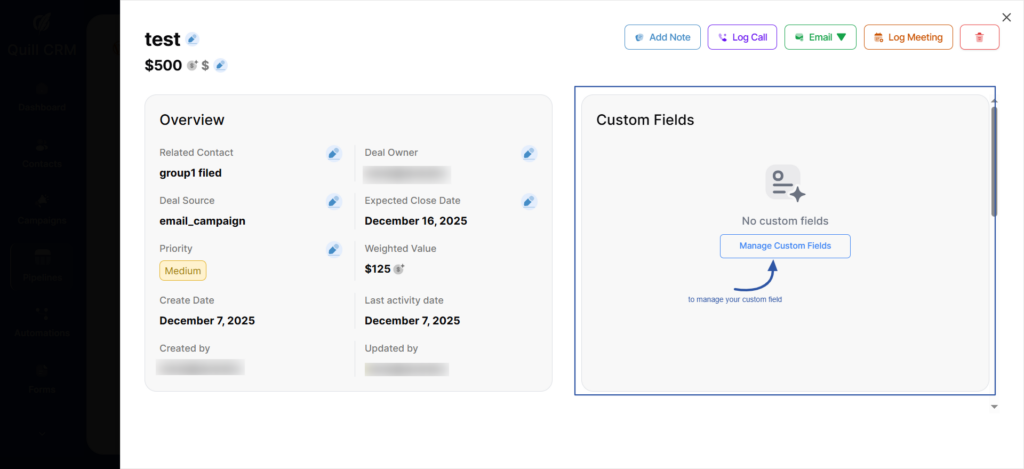
But if there are no custom fields yet, you can easily create new ones by clicking Manage Custom Fields, then adding the fields you need.
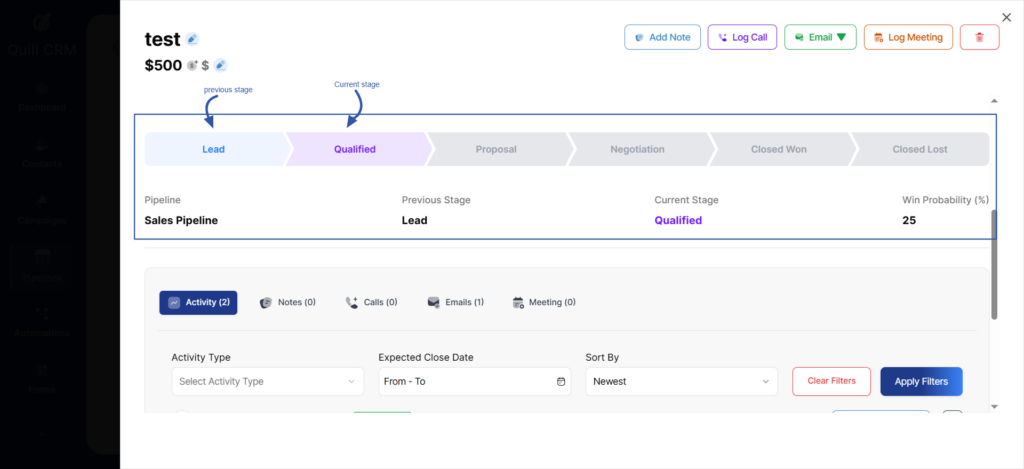
You can view the stage of the deal inside its assigned pipeline.
The pipeline stages appear visually, and the colored (highlighted) stage represents the current stage that the deal is currently in
Under the pipeline view, you can also find detailed information, such as Pipeline name, Current stage, Previous stage, and Win probability. This allows you to easily track the deal’s progress through the pipeline and understand its current status at a glance.