






















WooCommerce Wishlists lets you add an unlimited number of products to your wishlist so that you can make an informed purchase decision later on. In simple words, it’s simply a method of shortlisting an item and checking it out later.
QuillCRM Automations actively integrates with WooCommerce Wishlists and helps you set up trigger-based automations.
In this documentation, we will learn how to create automations for WooCommerce Wishlists using QuillCRM Automations.
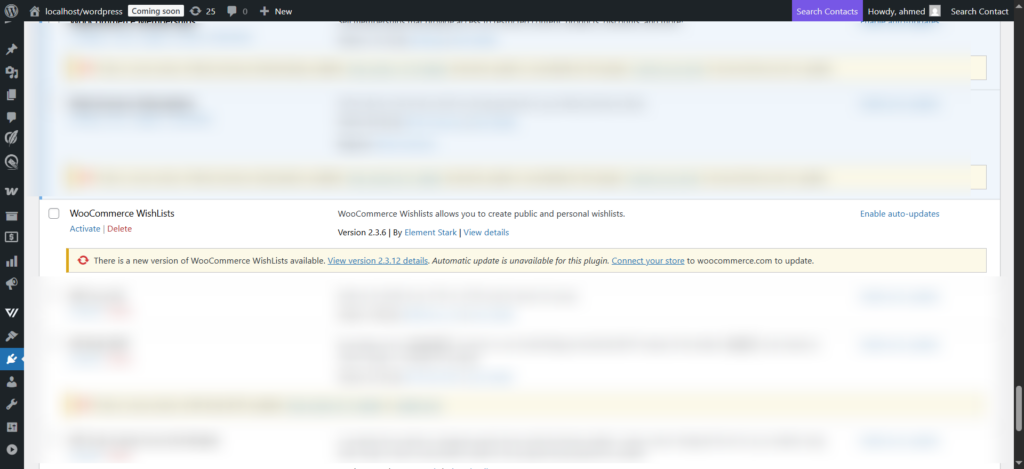
First download the plugin and install it, then activate this plugin.
Triggers
You can assign triggers/events for WooCommerce Wishlists to perform actions with QuillCRM Automations.
Here is a list of available events for WooCommerce Wishlists in QuillCRM Automations:
- Wishlist Item on Sale
- User adds product to wishlist
- Wishlist Reminder
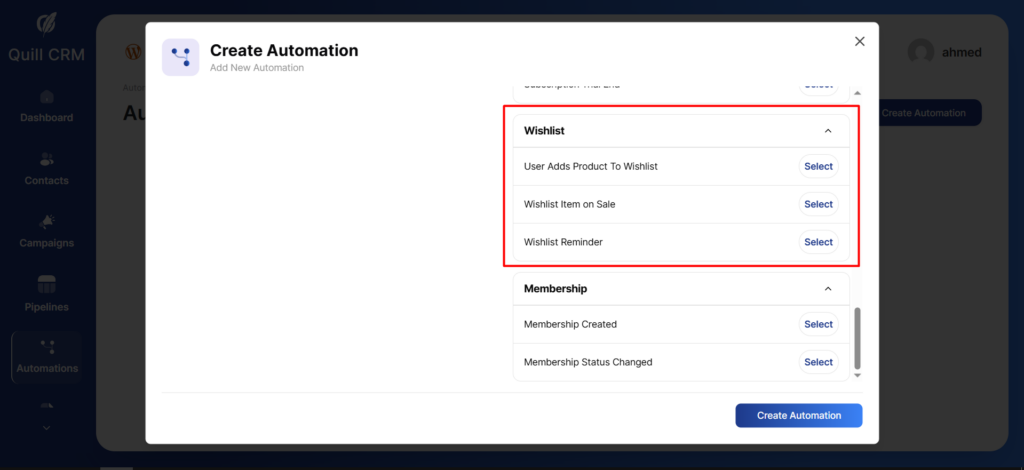
You can trigger these events and select an action in QuillCRM Automations.
Please note that WooCommerce wishlists don’t have any subsequent actions under them.
Rules
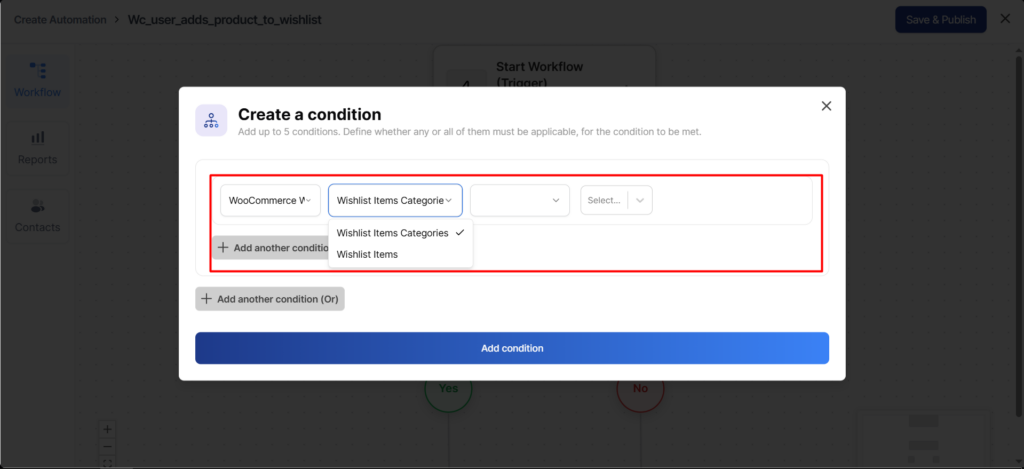
There are two interesting rules that QuillCRM Automations offers under WooCommerce Wishlists:
- Wishlist Items
- Wishlist Item categories
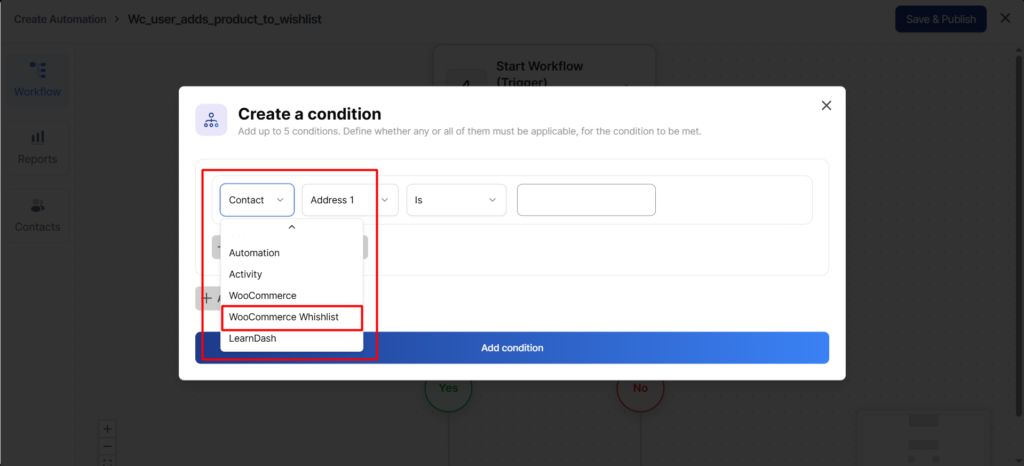
Click on Add New Condition and select Wishlist when setting up conditions.
Now click on the rule you want to select:
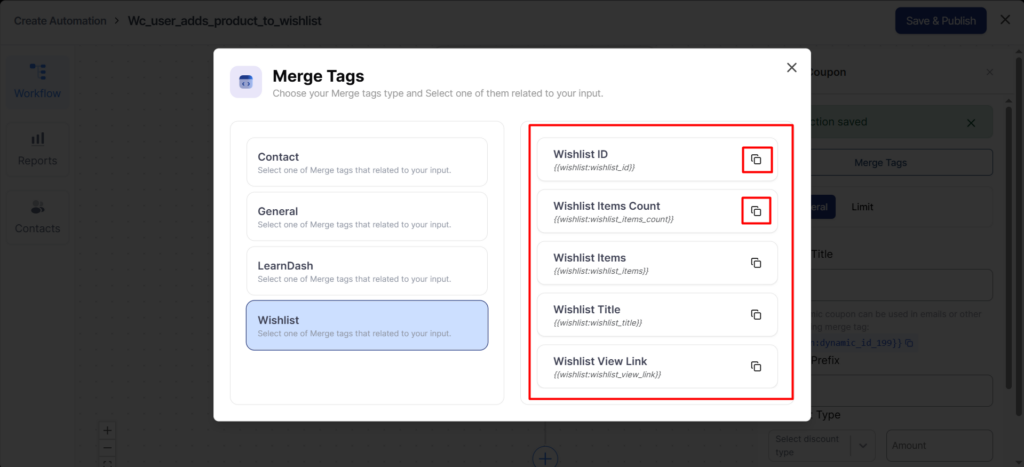
Merge Tags
Here are some merge tags available for WooCommerce Wishlists:
Wishlist ID
{{wishlist:wishlist_id}}
Returns the unique ID of the wishlist.
Useful for internal tracking, debugging, or referencing a specific wishlist programmatically.
Wishlist Items Count
{{wishlist:wishlist_items_count}}
Returns the total number of products added to the wishlist.
Helpful for conditional logic or displaying how many items a user has saved.
Wishlist Items
{{wishlist:wishlist_items}}
Returns a list of products included in the wishlist.
Each item typically contains the product name and other relevant details, depending on the integration.
Wishlist Title
{{wishlist:wishlist_title}}
Returns the title or name of the wishlist as set by the user.
Useful for personalization in emails and notifications.
Wishlist View Link
{{wishlist:wishlist_view_link}}
Returns a direct URL that allows the user to view their wishlist on the website.
Ideal for call-to-action buttons such as “View Your Wishlist”.
You can make use of these merge tags to perform different actions.
For example, if you want to remind the users about their wishlist items, then you can use wishlist_items merge tag:
Copy and paste the merge tag to your email content. It’s as simple as this!
This is how you can use merge tags to set up personalized interactions.