






















QuillCRM Automations perfectly integrates with WooCommerce and works like a charm. You’ll see the WooCommerce as an option in the events:
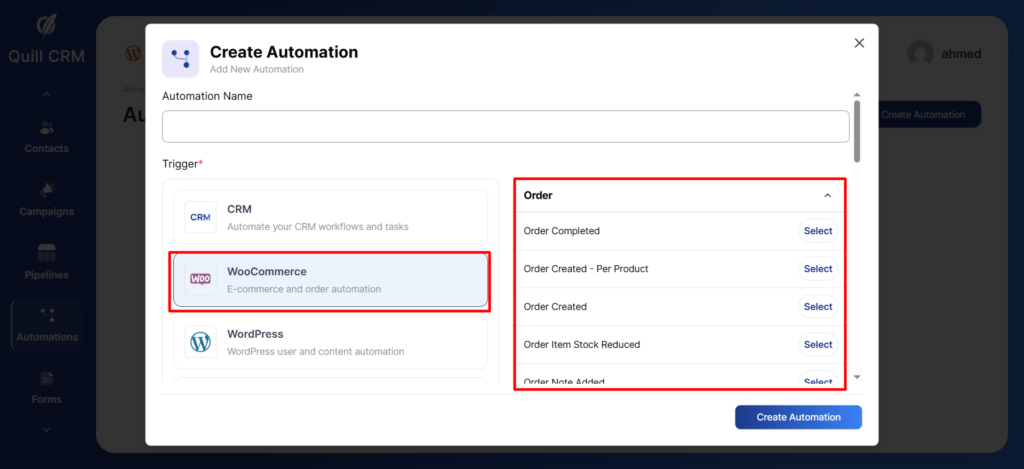
After you select WooCommerce from the plugins, the following options will show up in the drop-down.
These are all the possible events or triggers in WooCommerce:
Order Events:
Order Completed
Triggered when an order is marked as “Completed” in WooCommerce, indicating that the payment has been confirmed and the order has been fully fulfilled.
Order Created – Per Product
Triggered for each product within an order at the moment the order is created.
This event fires separately for every product included in the order.
Order Created
Triggered when a new order is successfully created in WooCommerce, regardless of its initial status.
Order Item Stock Reduced
Triggered when the stock quantity of one or more products is reduced as a result of an order placement.
Order Note Added
Triggered when a new note is added to an order, whether it is a customer note or an internal admin note.
Order Refunded
Triggered when an order is refunded, either partially or fully.
Order Status Changed
Triggered whenever the status of an order changes (for example: from Processing to Completed).
Order Status Pending
Triggered when an order status is set to Pending Payment, usually indicating that the payment has not been completed yet.
🛒 Cart Events
Abandoned Cart
Triggered when a customer adds products to the cart but does not complete the checkout within a defined period of time.
Cart Recovered
Triggered when a previously abandoned cart is successfully recovered and converted into a completed order.
⭐ Review Events
Review Received
Triggered when a customer submits a new product review on the website.
You can perform any action you want based on these events/triggers in WooCommerce. Now let’s dive in and learn everything in detail.
Triggers
When your user takes an action on the website or achieves a milestone, in QuillCRM Automations we call it an event or trigger. It’s what starts automation.
Let’s look at the triggers we’ve got in QuillCRM Automations under WooCommerce:
1. Cart
1.1 Cart Abandoned: Choose this event to run automation upon cart abandonment.
1.2 Cart Recovered: Want to run automation on cart recovery? Choose this event.
2. Order
2.1 Order Created: To run your automation when a new order gets created.
When you select this event, there will be a few things that you need to specify:
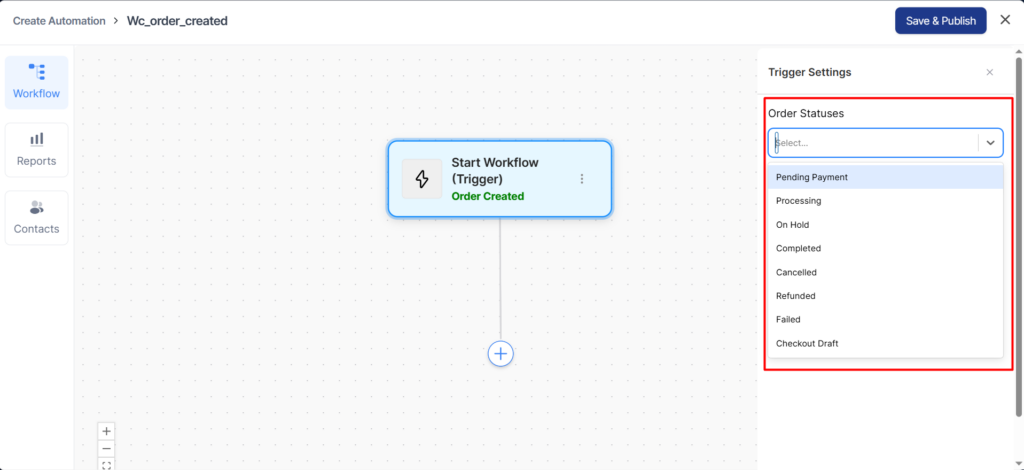
2.1.1 Order Statuses: Your automation will run only for the order status you select. Choose from “Completed”, “Draft”, “On hold”, and “Processing”.
2.2 Order Created – Per Product: Similar to the Order Created event, just that when you select this event, you can take action based on a specific item in their order.
So, this event allows you to take item-specific actions such as adding a tag.
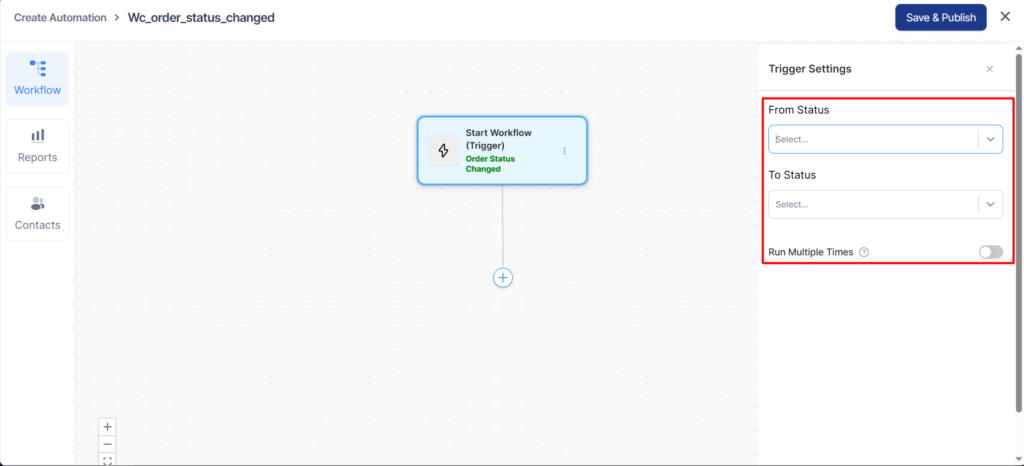
2.3 Order Status Changed: This event lets you take action based on the change in the status of the order.
You can choose a list of order status changed – From Status and To Status. It includes Any change, Pending Payment, Processing, On hold, Completed, Cancelled, and many more.
2.4 Order Refunded: When you select this event, the automation will get triggered on the successful refund of an item.
2.5 Order Item Stock Reduced: The automation will run when an item’s stock reduces below the specified threshold. You can specify that threshold (say 10) using conditional logic and then each time, the stock gets reduced, the corresponding action will get executed.
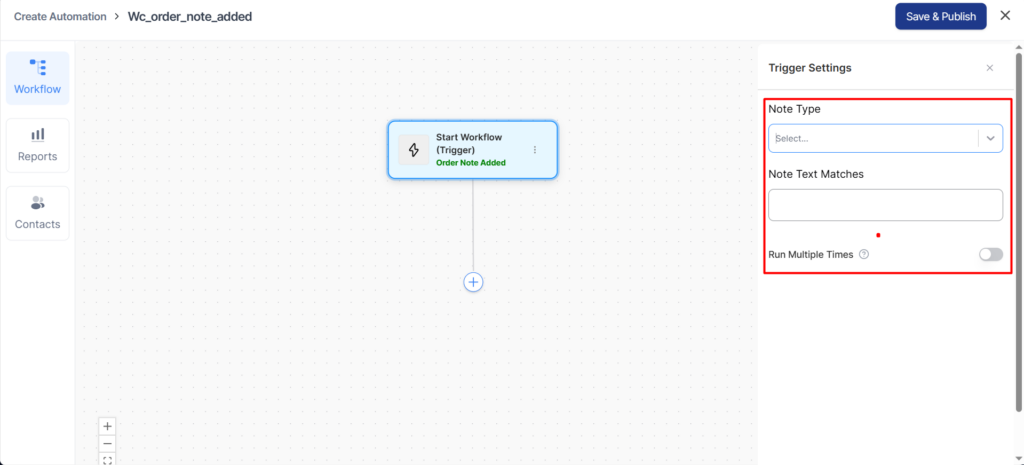
2.6 Order Note Added: When a buyer adds a special note to their order.
2.6.1 Note Type: Select this option to add this note in the private mode or assign it to the customer or even both options.
2.6.2 Note Text Matches: If this text matches the text written in the note, then only this automation will get triggered.
2.6.3 Runs on Contact: Choose this option if you want to run this automation once or multiple times for the event.
3. Review Received
3.1 Review Received: This event will trigger automation when a new review gets added.
Actions
Apart from actions like ‘send email’, ‘send data to Zapier’, ‘send a message on Slack’, ‘send SMS’, ‘Communicate with the CRM’, and more, there are WooCommerce-specific actions.
Let’s take a look:
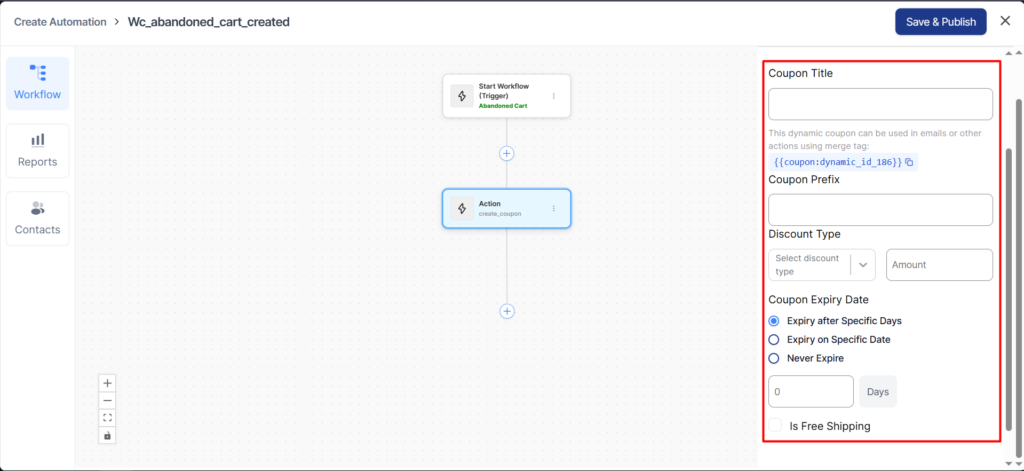
1. Create Coupon: This action enables you to create a coupon code and personalize its elements.
You can personalize the coupon code using merge tags (for first name and more) and also set an expiry (in the number of days) for the coupon.
2. Change Order Status: This action lets you update the status of an order.
You can choose from a range of statuses – Completed, Canceled, On Hold, etc.
3. Add Order Note: When you select this action, you can add a special instruction or a special note for your order for the buyer.
Rules
Let’s look at the list of available WooCommerce-specific rules to run your automation.
Cart
Here’s a list of cart-related rules that you can use in your automation to make your campaigns more relevant.
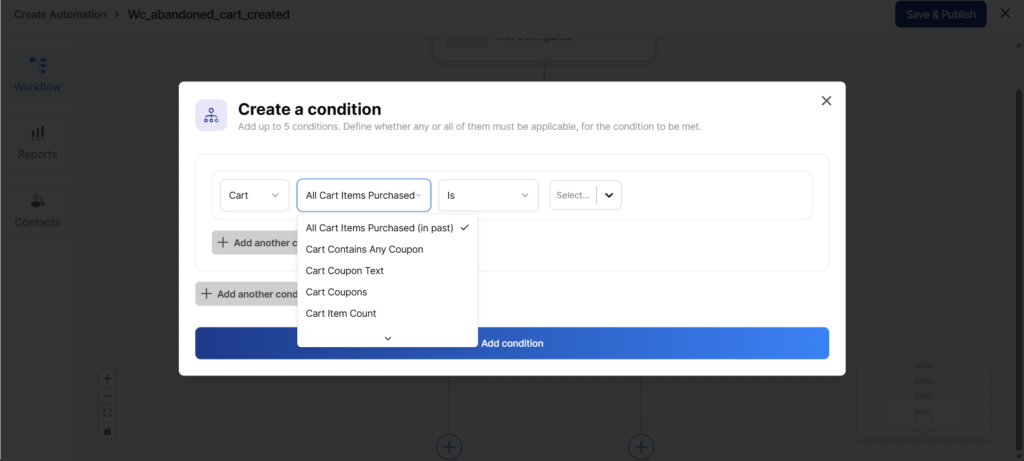
You can create your abandonment sequence based on the cart total, the items in the cart, category, cart items tags, coupons used, coupon text, all cart items purchased in the past, cart contains any coupons and cart item count.
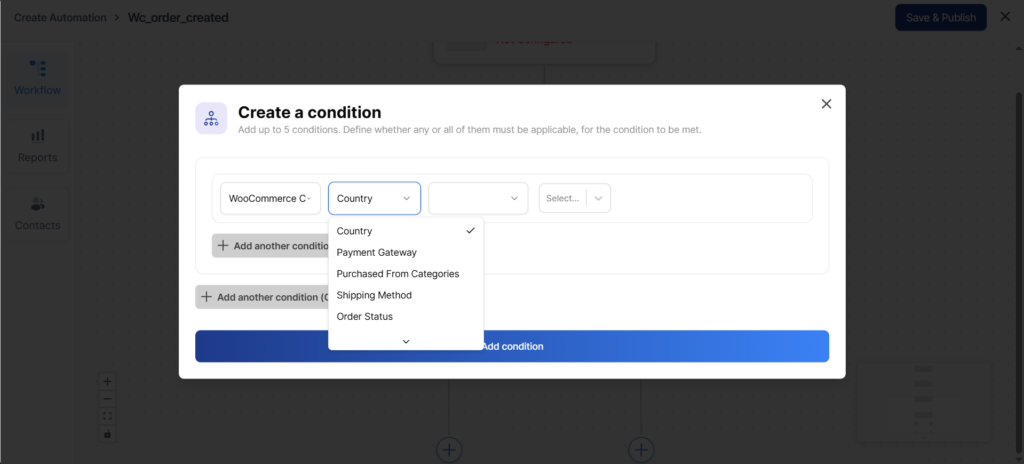
WooCommerce Current Order
Here’s a bunch of order-specific rules you can choose from.
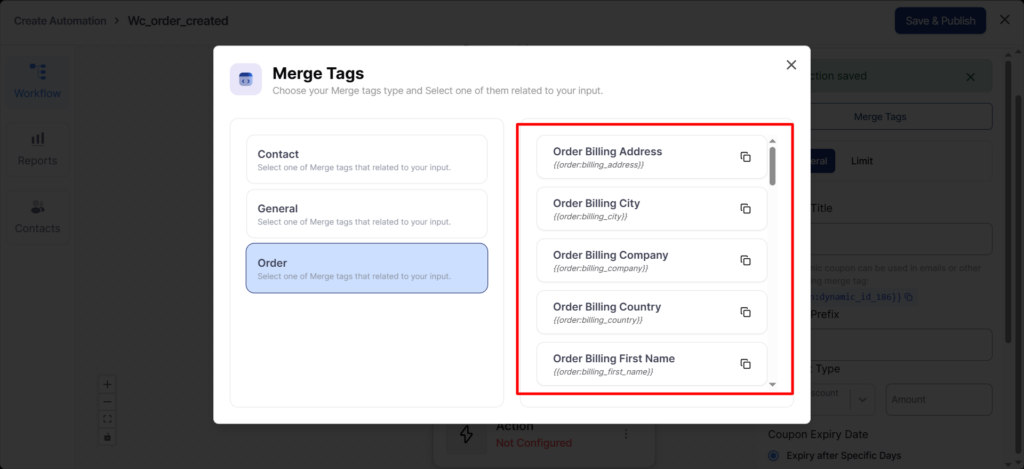
Merge Tags
Select from a pool of merge tags to personalize your content and make messages more relevant to your audience.
Here are some merge tags available for WooCommerce:
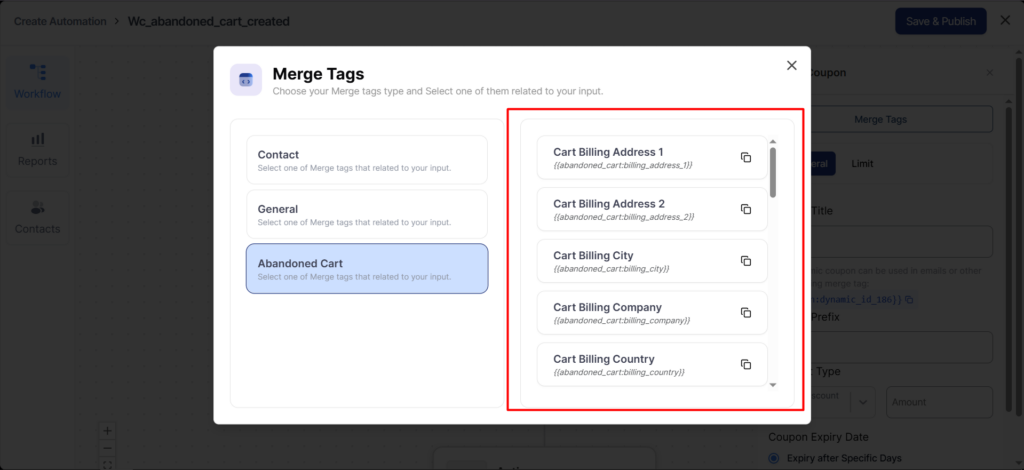
Apart from these, you’ll see order and customer-specific merge tags like:
QuillCRM Automations deeply integrates with WooCommerce to execute actions based on the events/triggers in WooCommerce.
This will make your cart even more powerful.