






















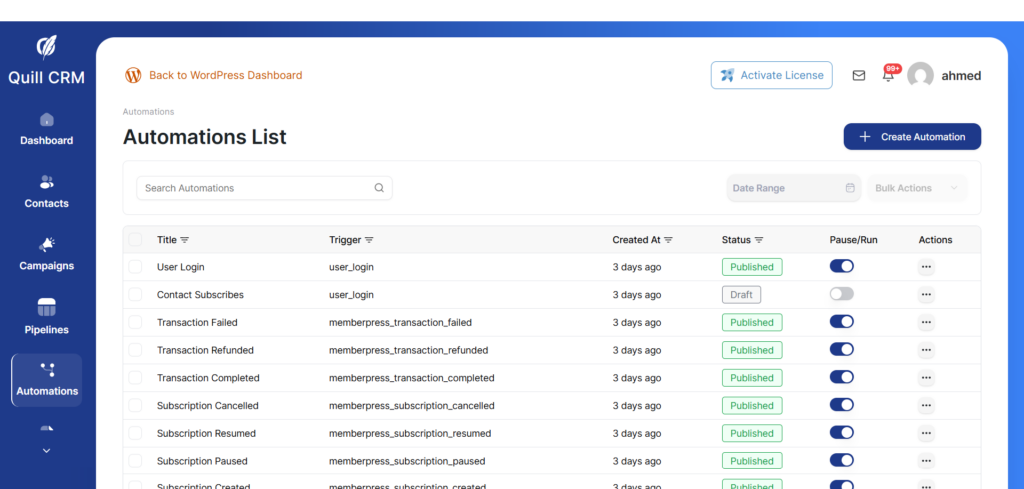
Quill CRM integrates deeply with MemberPress, the popular WordPress membership plugin. This integration allows you to automate your membership workflows — from welcoming new members to handling cancellations and renewals — all within Quill CRM’s visual automation builder.
Prerequisites
Before using MemberPress automations, make sure:
- MemberPress is installed and activated on your WordPress site.
- Quill CRM Pro is installed and activated.
- You have at least one MemberPress membership created and published.
Once both plugins are active, MemberPress triggers, actions, rules, and merge tags will automatically appear in the Quill CRM automation builder.
Available Triggers
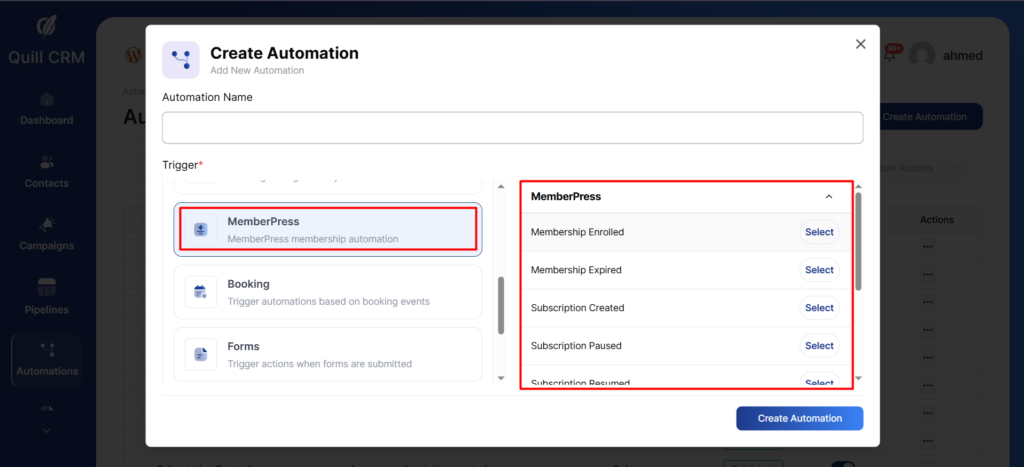
Triggers start an automation when a specific MemberPress event occurs. When configuring any trigger, you can optionally filter by specific memberships — leave the Memberships field empty to match all memberships.
Membership Enrolled
Fires when a user enrolls in a MemberPress membership (i.e., their transaction is marked as complete). Use this trigger to welcome new members, assign tags, or add them to onboarding email sequences.
Transaction Completed
Fires when a MemberPress payment transaction is completed. This is similar to Membership Enrolled but provides additional transaction details such as tax amount, total, coupon ID, transaction number, and expiration date. Use it for payment confirmations or revenue-based automations.
Transaction Refunded
Fires when a MemberPress transaction is refunded. Use this trigger to notify your team, update CRM tags, or send a follow-up message to the member.
Transaction Failed
Fires when a MemberPress transaction fails. This is useful for sending payment retry reminders, alerting admins, or moving contacts into a re-engagement workflow.
Membership Expired
Fires when a user’s MemberPress membership expires. Use this trigger to send renewal reminders, remove access-related tags, or start a win-back campaign.
Subscription Created
Fires when a new recurring subscription is created and becomes active. This only triggers for brand-new subscriptions (status transitions from empty/pending to active). Use it to track new recurring revenue or segment recurring members.
Subscription Paused
Fires when a MemberPress subscription is paused (suspended). Use this trigger to send re-engagement emails or flag the contact for follow-up.
Subscription Resumed
Fires when a previously paused subscription is resumed (transitions from suspended to active). Use this trigger to send a welcome-back message or restore tags.
Subscription Cancelled
Fires when a MemberPress subscription is cancelled. Use this trigger to send exit surveys, start a win-back sequence, or update the contact’s status in your CRM.
Available Actions
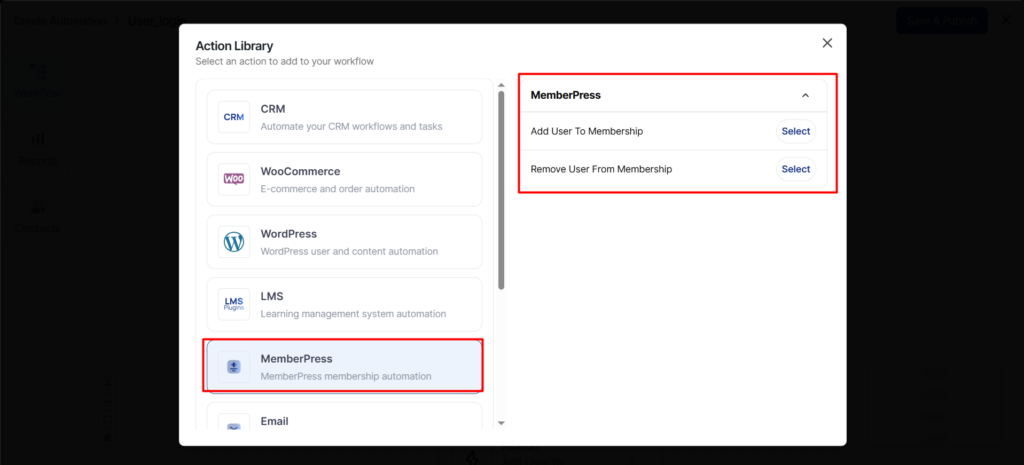
Actions are steps that Quill CRM executes within an automation workflow. MemberPress provides two membership management actions.
Add User To Membership
Programmatically enroll a contact into a MemberPress membership by creating a completed transaction. This is useful for granting access as a reward, part of a funnel, or through a non-standard checkout flow.
Configuration options:
- Membership — Select the MemberPress membership to enroll the user in. Expiration is calculated automatically based on the membership’s access settings.
- Transaction Amount — Choose how the transaction amount is recorded:
- Free ($0.00) — Creates a $0 transaction (default).
- Use membership price — Records the actual membership price.
- Custom amount — Enter a specific amount for reporting purposes. This does not charge the user.
Note: This action creates a manual transaction with gateway = manual. It does not process an actual payment.
Remove User From Membership
Revoke a contact’s access to a MemberPress membership. This action expires all active transactions for the specified membership and cancels any active recurring subscriptions.
Configuration options:
- Membership — Select the MemberPress membership to remove the user from.
If the user does not have an active membership for the selected product, the action will log a message and skip execution.
Conditional Rules
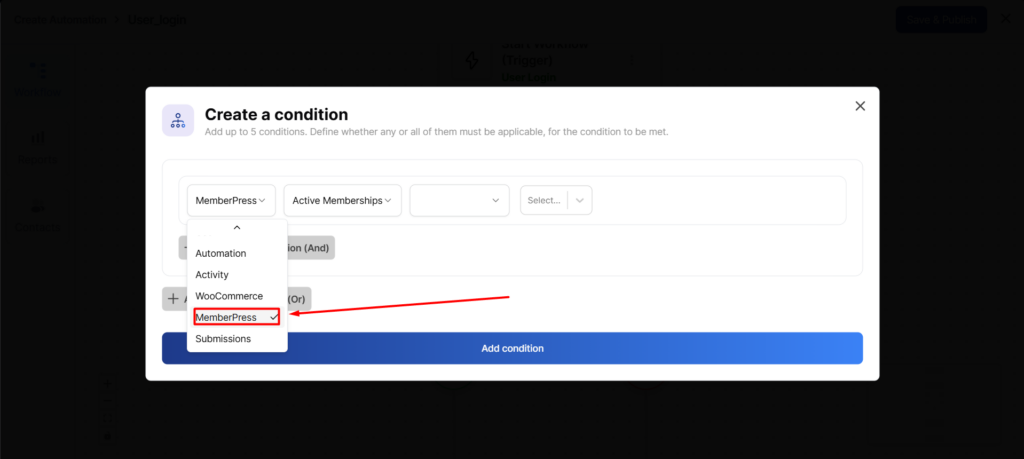
Rules allow you to add conditional logic to your automations, so workflows only proceed when certain criteria are met. MemberPress provides five rules grouped under the MemberPress section in the conditions panel.
Membership Name
Check which membership triggered the automation. Available with all MemberPress triggers.
- Operators: Is, Is not
- Value: Select a membership from the dropdown
Transaction Amount
Check the transaction amount from the trigger event. Available with Membership Enrolled, Transaction Completed, Transaction Refunded, Transaction Failed, and Subscription Created triggers.
- Operators: Is, Is not, Greater than, Lower than
- Value: Enter a numeric amount
Subscription Status
Check the subscription status from the trigger event. Available with Subscription Created, Subscription Paused, Subscription Resumed, and Subscription Cancelled triggers.
- Operators: Is, Is not
- Options: Active, Suspended, Cancelled, Pending
Transaction Status
Check the transaction status from the trigger event. Available with Membership Enrolled, Transaction Completed, Transaction Refunded, and Transaction Failed triggers.
- Operators: Is, Is not
- Options: Pending, Complete, Failed, Refunded
Active Memberships
Check which MemberPress memberships a contact currently holds, regardless of the trigger. This rule looks up the user’s active subscriptions in real time, making it useful for cross-sell or upsell logic.
- Operators:
- Includes — User has at least one of the selected memberships.
- Does not include — User does not have any of the selected memberships.
- Includes all — User has all of the selected memberships.
- Includes none of — User is missing at least one of the selected memberships.
Merge Tags
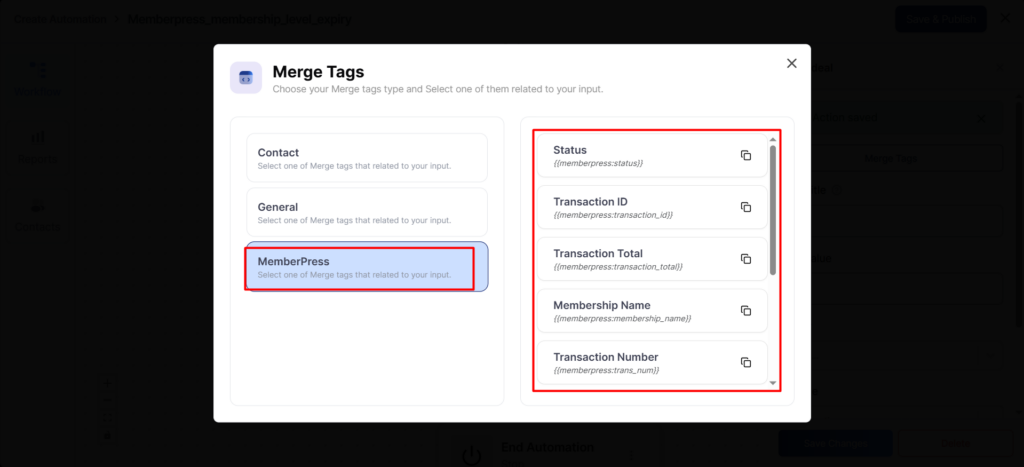
Merge tags let you dynamically insert MemberPress data into emails, SMS messages, and other automation content. The following merge tags are available when a MemberPress trigger is used:
| Merge Tag | Description |
|---|---|
{{membership_name}} | Name of the membership |
{{membership_id}} | ID of the membership |
{{membership_url}} | URL of the membership page |
{{subscription_id}} | Subscription ID (for recurring memberships) |
{{status}} | Subscription status (active, suspended, cancelled) |
{{transaction_id}} | Transaction ID |
{{trans_num}} | Transaction number (gateway reference) |
{{transaction_amount}} | Transaction amount |
{{transaction_total}} | Transaction total (including tax) |
Example Automation: New Member Welcome Sequence
Here is an example of how to set up a common MemberPress automation:
- Go to Quill CRM → Automations and click Create Automation.
- Select MemberPress as the automation source.
- Choose the Membership Enrolled trigger.
- Optionally filter by specific memberships.
- Add actions such as:
- Add Tag — Tag the contact as “Active Member”.
- Send Email — Send a personalized welcome email using merge tags like
{{membership_name}}. - Add to List — Add the contact to a “Members” list for future campaigns.
- Activate the automation.
Troubleshooting
- MemberPress triggers/actions not showing? — Make sure MemberPress is installed and activated. Quill CRM checks for the
MEPR_PLUGIN_NAMEconstant to enable MemberPress features. - “Add User To Membership” not working? — Verify that the contact has a WordPress user account associated with their email address. This action looks up users by email.
- “Remove User From Membership” skipping? — The action only runs if the user currently has an active subscription for the specified membership.
- Automation not firing? — Check that the automation is active and that the membership filter (if set) matches the membership involved in the event.