






















QuillCRM automatically discovers Advanced Custom Fields (ACF) fields assigned to WordPress users and makes them available as merge tags. This lets you personalize automations and campaigns with custom user data — like VAT numbers, company size, birthdays, or any other ACF field — without duplicating data.
Requirements
- ACF (free) or ACF Pro must be installed and active.
- You need at least one ACF field group with location rules targeting users (e.g., “User Form” = All, or “User Role” = Customer).
- Contacts must be linked to a WordPress user (matched by email address).
If ACF is not active, the “ACF User Fields” group will appear as disabled in the merge tag picker and no tags will be registered.
How It Works
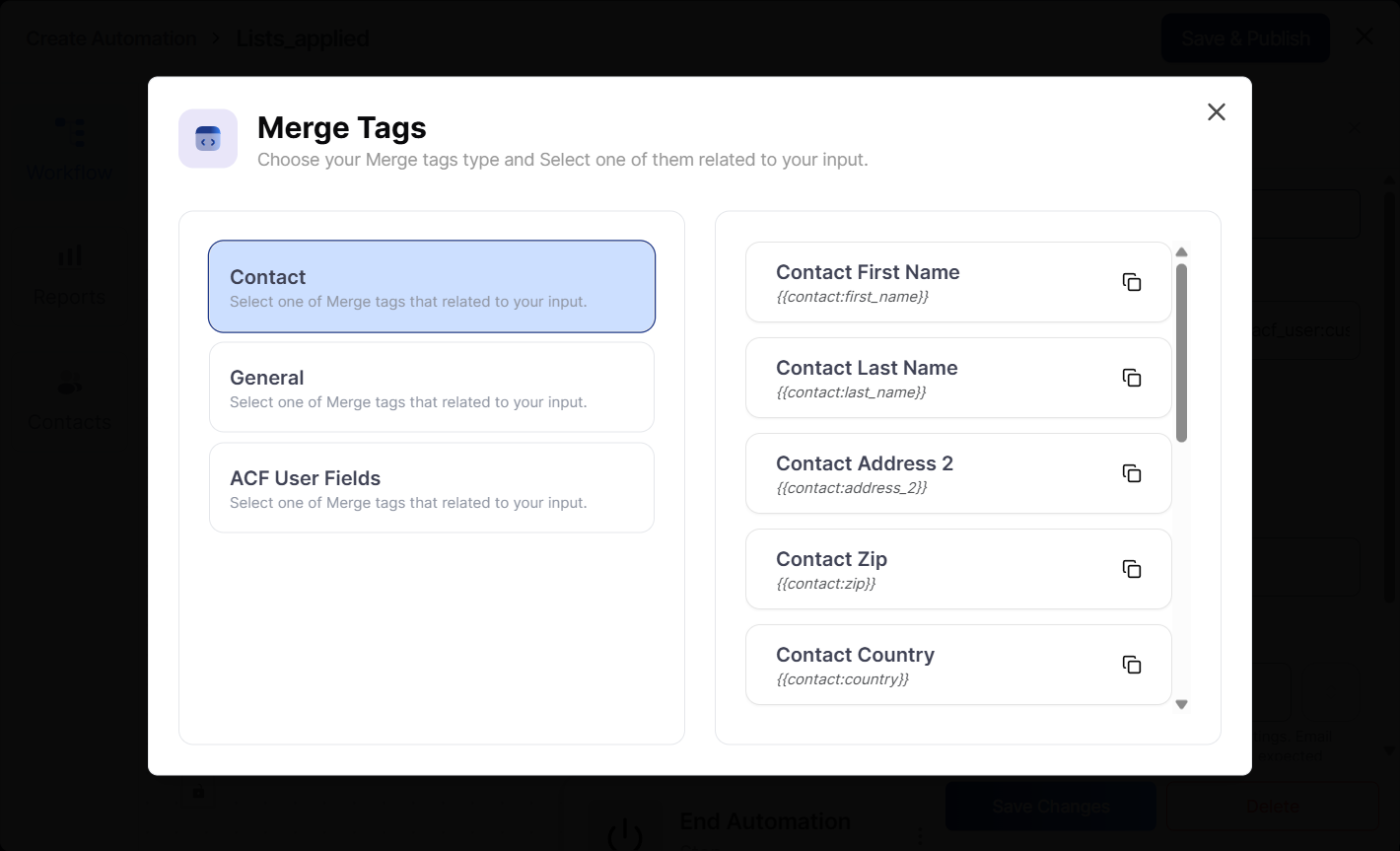
QuillCRM scans all active ACF field groups and identifies those targeting WordPress users. For each compatible field in those groups, a merge tag is automatically registered under the ACF User Fields group.
When a merge tag is resolved (e.g., in an email or automation action), QuillCRM:
- Looks up the contact’s linked WordPress user.
- Reads the ACF field value directly from that user using ACF’s
get_field()function. - Returns the value as a string.
This means the data is always live and up-to-date — there’s no sync or data duplication involved.
Merge Tag Syntax
ACF user field merge tags follow this format:
{{acf_user:field_name}}Where field_name is the ACF field name (not the label). For example:
| Merge Tag | Description | Example Output |
|---|---|---|
{{acf_user:customer_vat_number}} |
Customer’s VAT number | VAT123456 |
{{acf_user:company_size}} |
Company size (select field) | medium |
{{acf_user:customer_birthday}} |
Customer birthday (date picker) | 20260315 |
{{acf_user:customer_interests}} |
Customer interests (checkbox) | tech, finance |
{{acf_user:is_vip}} |
VIP status (true/false) | 1 |
Supported Field Types
Only simple, scalar ACF field types are supported as merge tags. These are fields that return a single string value (or in the case of checkboxes, a list that gets joined into a comma-separated string).
| Field Type | Return Format |
|---|---|
| Text | String |
| Textarea | String |
| Number | String |
| Range | String |
| String | |
| URL | String |
| Password | String |
| Select | String (selected value) |
| Checkbox | Comma-separated values |
| Radio Button | String (selected value) |
| Button Group | String (selected value) |
| True / False | “1” or empty string |
| Date Picker | String (date format) |
| Date Time Picker | String (date/time format) |
| Time Picker | String (time format) |
| Color Picker | String (hex color) |
Complex field types are not supported, including: Image, File, WYSIWYG, oEmbed, Link, Post Object, Page Link, Relationship, Taxonomy, User, Google Map, Repeater, Group, Flexible Content, Gallery, and Clone.
Using ACF Merge Tags in Automations
ACF user field merge tags work in any automation action that supports merge tags, such as Send Email, Send SMS, or Add Note.
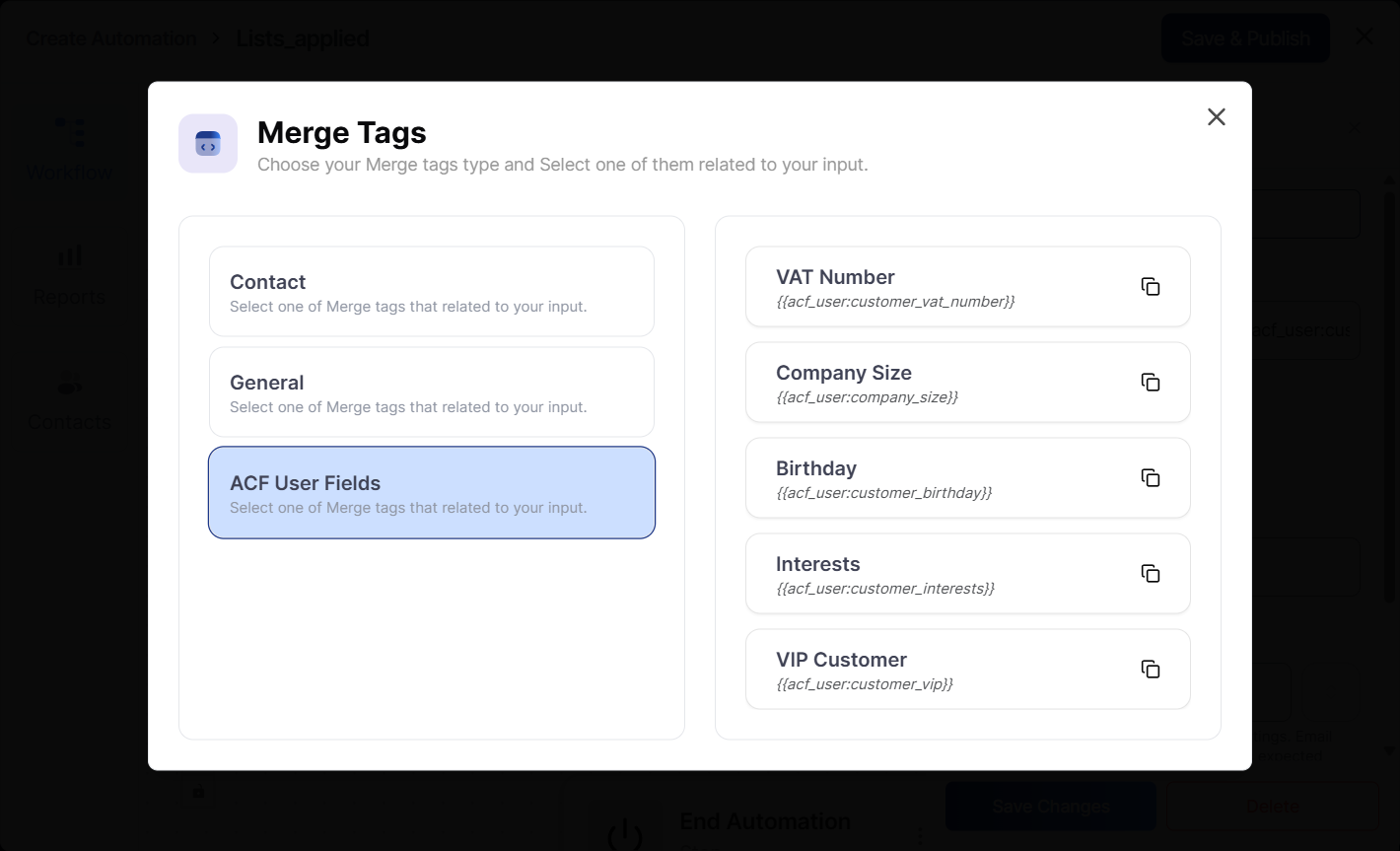
To insert an ACF merge tag:
- Open the automation editor and select an action (e.g., Send Email).
- Click the merge tag icon {…} in the text field where you want to insert the tag.
- In the merge tag picker, look for the ACF User Fields group.
- Select the desired field — the tag (e.g.,
{{acf_user:customer_vat_number}}) will be inserted automatically.
Using ACF Merge Tags in Campaigns
ACF merge tags also work in email and SMS campaigns. When composing your campaign content, use the merge tag picker or type the tag directly:
Hi {{contact:first_name}},

Your VAT number on file is {{acf_user:customer_vat_number}}.
Your account type: {{acf_user:company_size}}.

Thanks,
{{general:business_name}}
Edge Cases & Behavior
| Scenario | Behavior |
|---|---|
| Contact has no linked WordPress user | Returns empty string |
| ACF field is empty or not set | Returns empty string |
| ACF plugin is deactivated | Group shows as disabled; tags return empty string |
| Checkbox field with multiple values | Values are joined with a comma and space (e.g., “tech, finance”) |
| True/False field | Returns “1” for true, empty string for false |
Setting Up ACF Fields for Users
If you don’t already have ACF fields for users, here’s how to set them up:
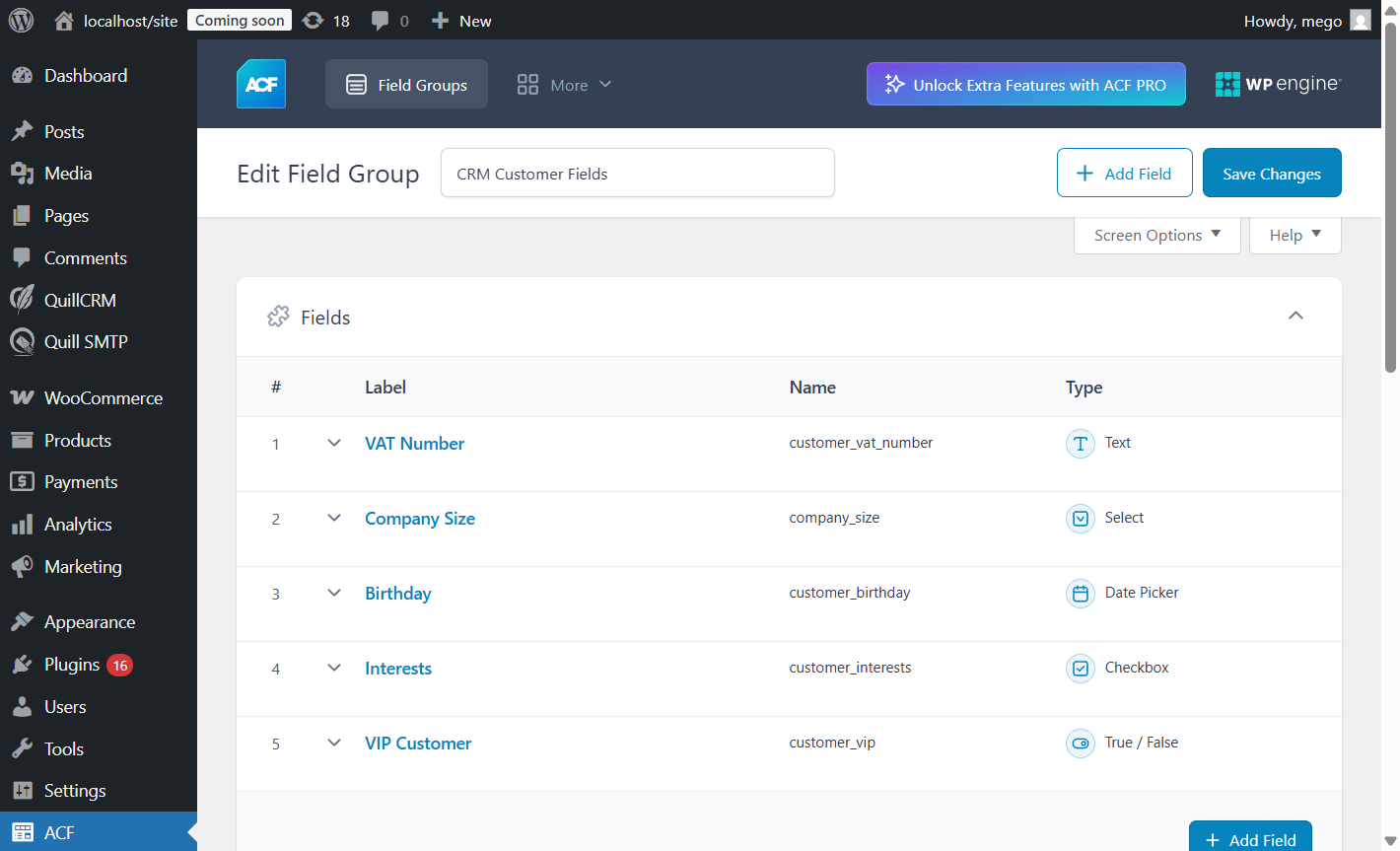
- Go to ACF → Field Groups in your WordPress admin.
- Click Add New to create a new field group.
- Add your fields (e.g., Text field for “VAT Number”, Select field for “Company Size”).
- Under Location Rules, set the rule to User Form is equal to All (or target a specific user role like “Customer”).
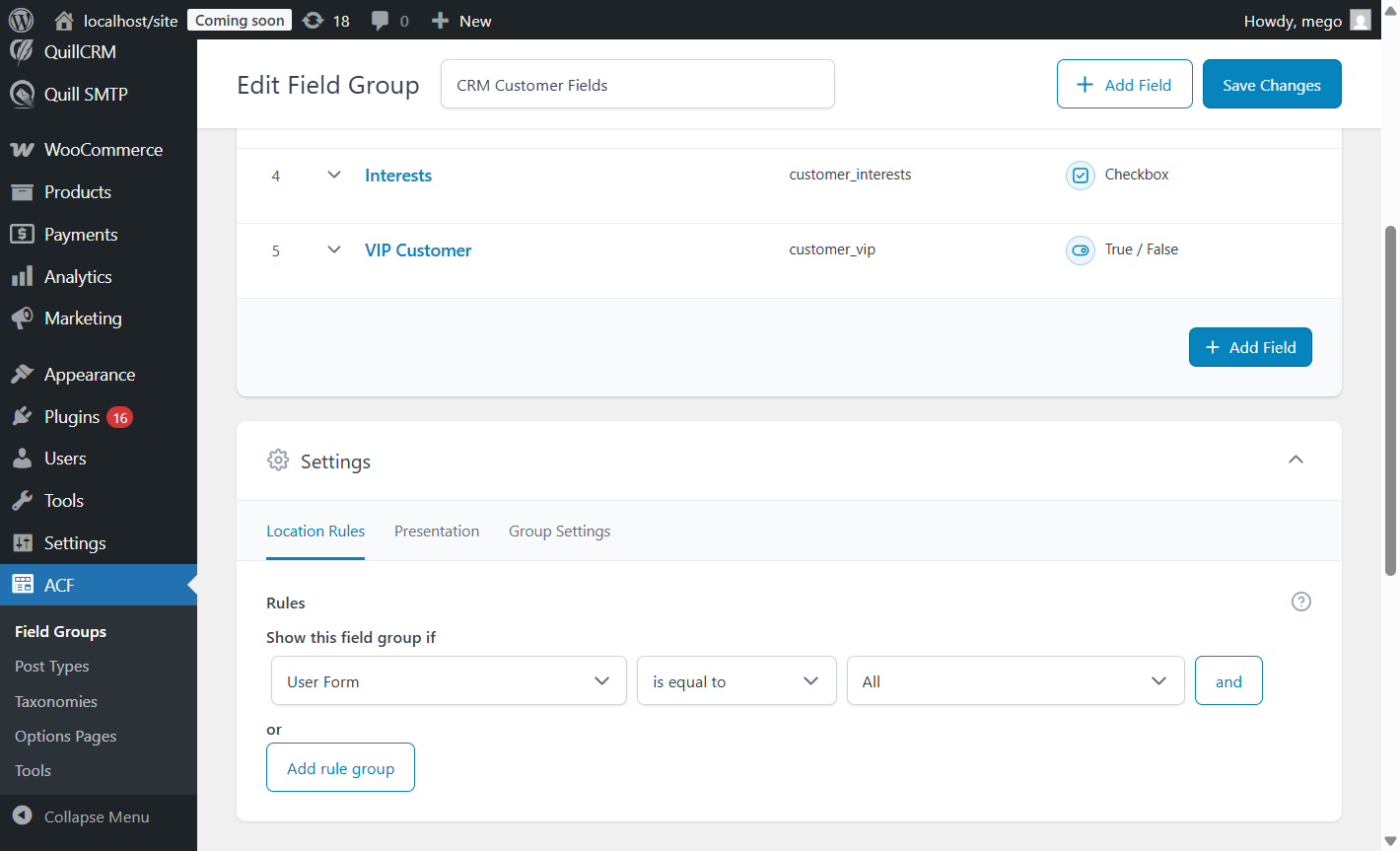
Set the location rule to target user profiles. - Publish the field group.
Once the field group is saved and ACF is active, QuillCRM will automatically detect the fields and register them as merge tags. No additional configuration is needed in QuillCRM.
FAQ
Do I need to manually register ACF fields in QuillCRM?
No. QuillCRM automatically discovers all ACF field groups targeting users and registers compatible fields as merge tags.
Will changes to ACF field values appear immediately?
Yes. Merge tags read values directly from ACF on each resolution — there is no caching or sync delay.
Does this work with ACF Pro?
Yes. Both the free version of ACF and ACF Pro are fully supported.
What happens if I rename an ACF field?
If you change the field name in ACF, the old merge tag will stop working. Update any automations or campaigns that reference the old field name.
Can I use ACF fields from custom post types or options pages?
No. Only ACF fields assigned to WordPress user profiles are supported as merge tags. Fields on posts, pages, or options pages are not included.