






















Slack is an application that allows you to socially connect with your team by sending out messages to a group.
But you can only take actions using Slack if you’ve synced your workspace in Slack with QuillCRM Automations.
Learn how to connect Slack to QuillCRM Automations here
When you connect Slack with QuillCRM Automations, these are the actions that’ll become visible:
- Send a message to a channel
Now let’s take a case—where you want to get notified on Slack when your stock size for any item falls below a set threshold.
Getting notified via Slack when an item stock reduces
So say when the number of items left falls below 10, you want to be informed on Slack.
Follow these steps to easily set up this simple automation:
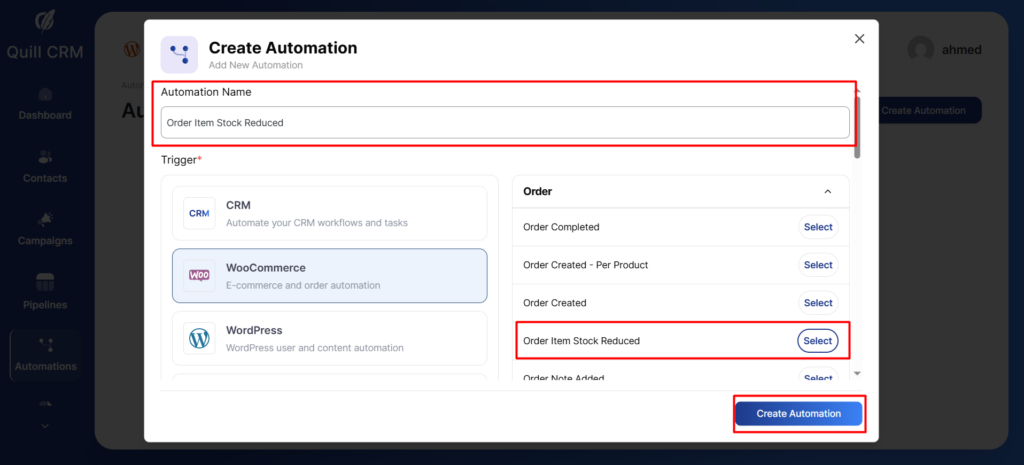
Step 1: Select the “Order Item Stock Reduced” event for your automation
Add new automation >> Select “Order Item Stock Reduced” from the list of events.
Step 2: Select the condition
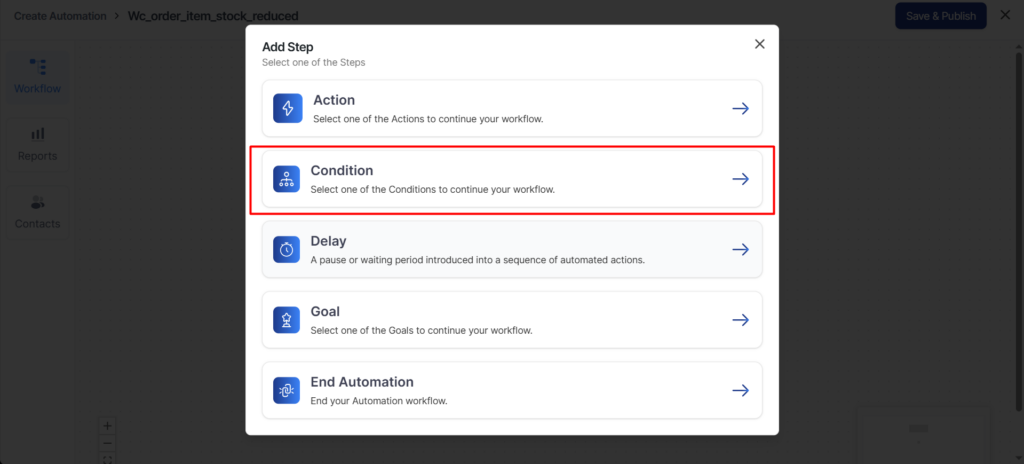
Click on the “+” icon and select Condition.
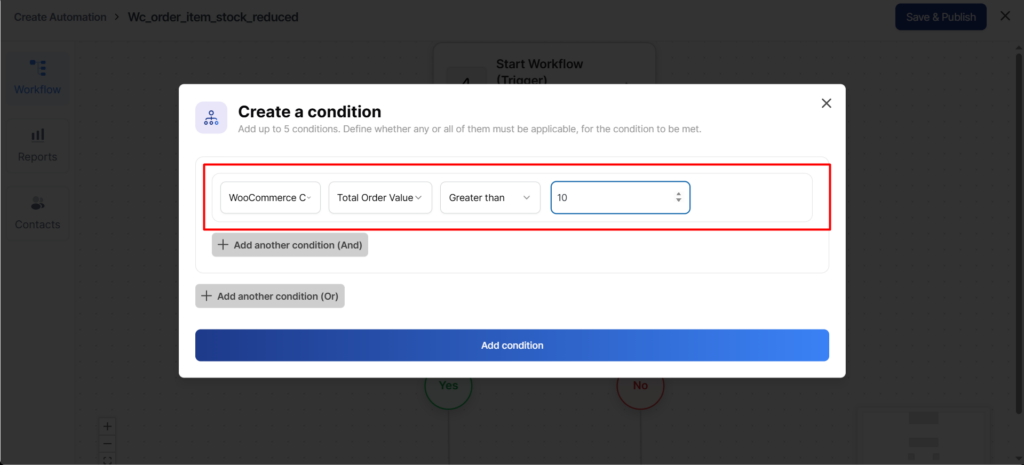
Hit the “Total Order Value” from the list as shown below:
Step 3: Set the action for your automation
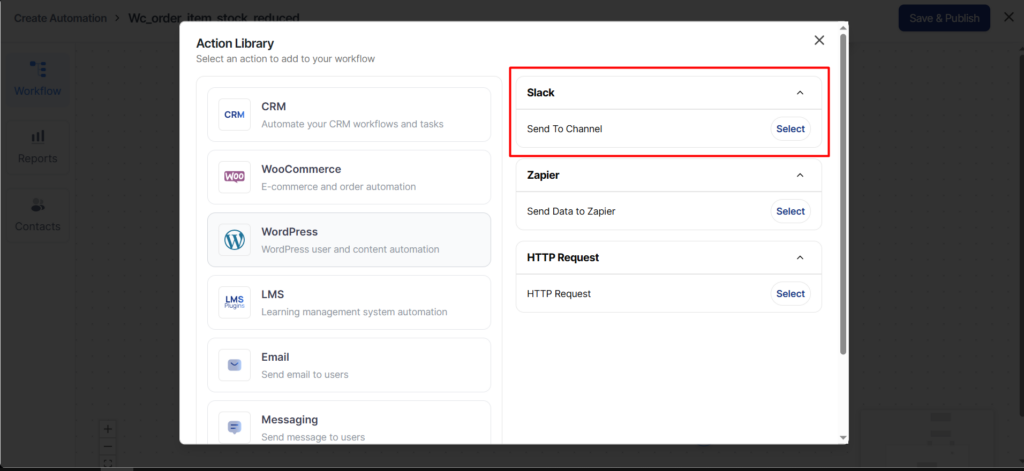
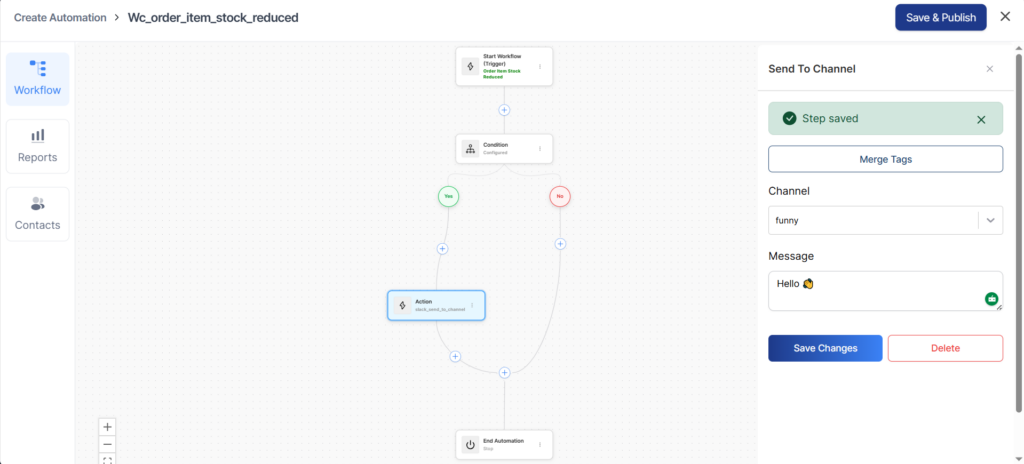
Select “Send To Channel” as an action >> send data Select whom to send the message and what to send
You’ll find the action under Slack in the Actions drop-down list as shown below:
Next, select the Slack user to whom you want to send the message and put in the content.
Here’s where you’ll find the list of Slack users associated with your organization:
Step 4: Test out your automation
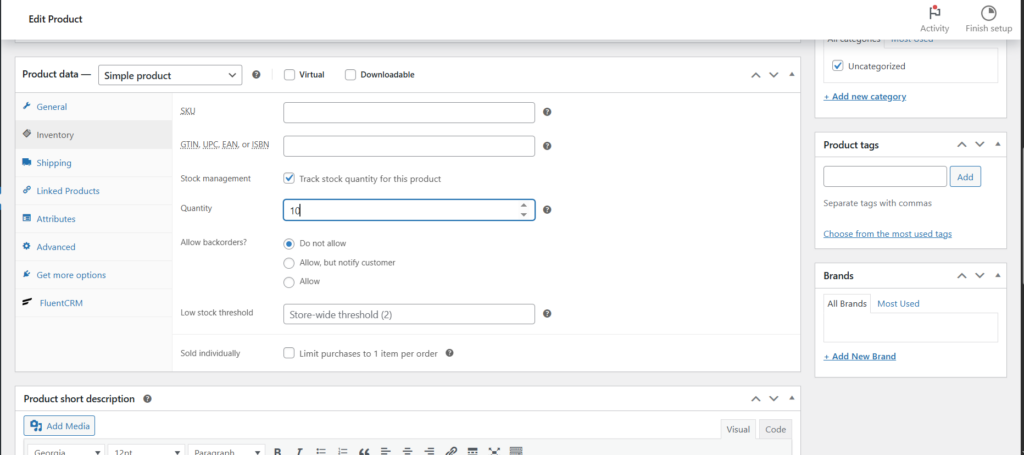
Go to Products >> Select a demo product >> Go to inventory and set its quantity as ‘10’
Here’s where you need to set the quantity:
Once you’ve updated it, go to WooCommerce and purchase the demo product.

This was really a simple automation setup that establishes a communication link between Slack and WooCommerce via QuillCRM Automations.
You can unleash the power of Slack and set up any number of useful automations you like.