






















QuillCRM Pro integrates with the Meta WhatsApp Business API, allowing you to send WhatsApp messages to your contacts using approved message templates.
This guide walks you through the complete setup process from start to finish.
=============================================
PREREQUISITES
Before you begin, ensure all the following requirements are met:
• QuillCRM Pro plugin is installed and activated
• A Meta Business Account
(Create one at: business.facebook.com)
• A WhatsApp Business Account linked to your Meta Business Account
• A verified business phone number for WhatsApp messaging
STEP 1: CREATE A META APP
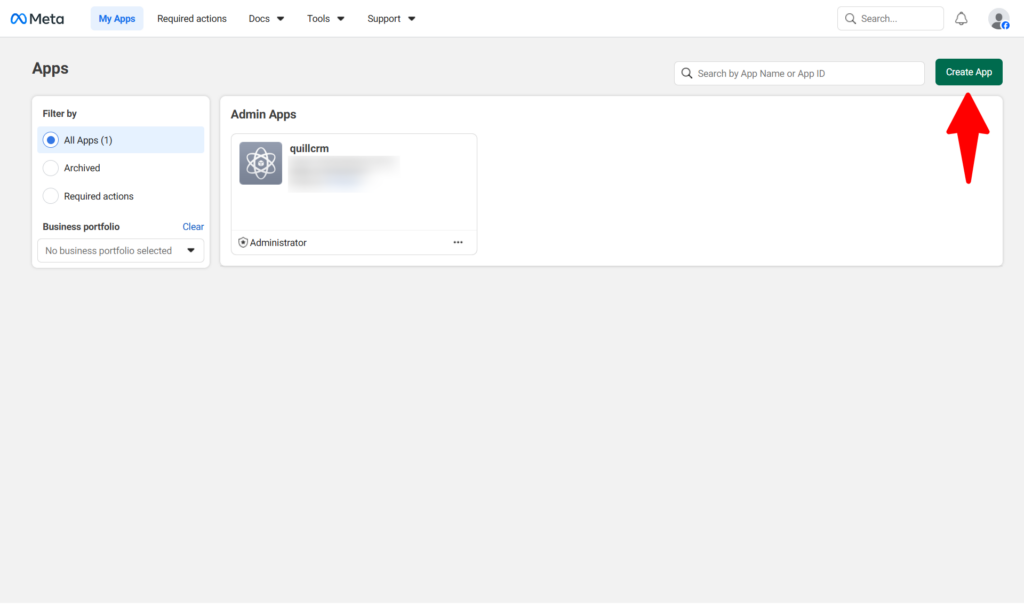
- Visit the Meta for Developers portal at:
developers.facebook.com - Click “My Apps”, then click “Create App”.
- When asked to choose an app type, select:
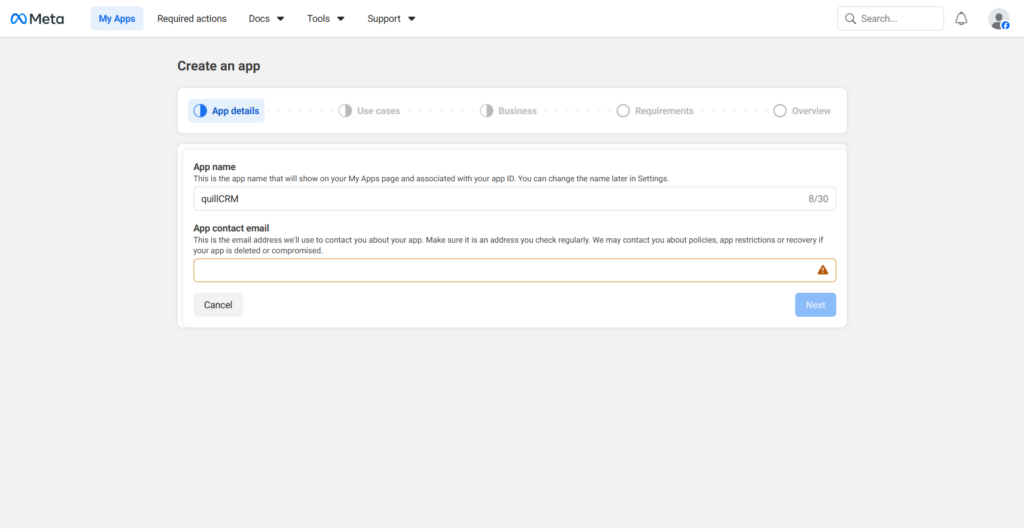
Business - Fill in the app details:
• App Name: Choose a descriptive name
Example: QuillCRM WhatsApp
• App Contact Email: Your business email address
• Business Account: Select your Meta Business Account
STEP 2: ADD THE WHATSAPP USE CASE
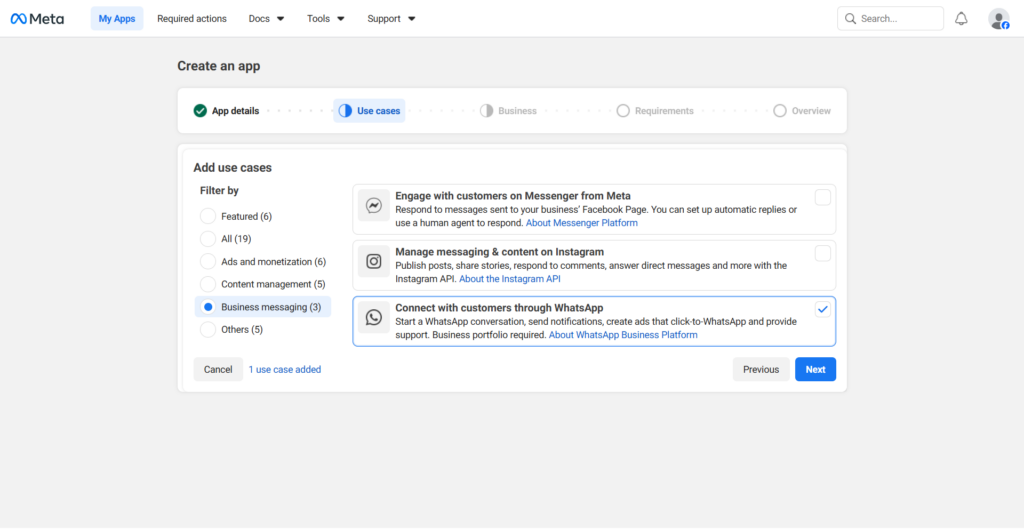
- In your next step “use cases”, locate “Connect with customers through WhatsApp” in business messaging list.
- Click the “Next” button till you finish registeration.
Note: Business verification is required before production use.
STEP 3: GET YOUR API CREDENTIALS
You will need FOUR credentials from Meta.
ACCESS TOKEN
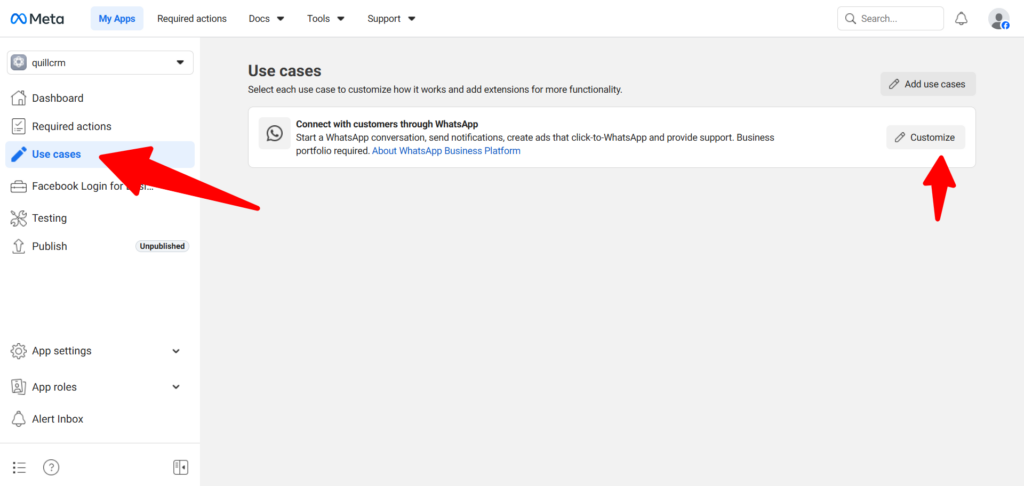
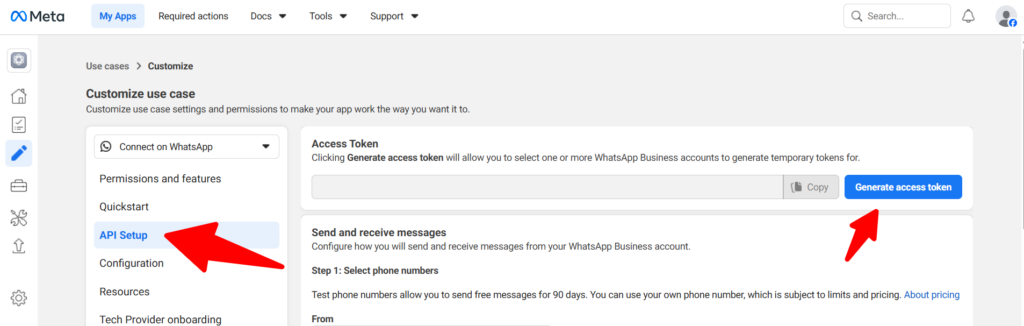
- In your app dashboard, go to:
Use Cases→ customize - Under “API SETUP”, click “Generate Token”.
- Copy the token.
IMPORTANT:
For production use, generate a permanent token. Here are Meta docs:https://developers.facebook.com/documentation/business-messaging/whatsapp/get-started#1--acquire-an-access-token-using-a-system-user-or-facebook-login
PHONE NUMBER ID
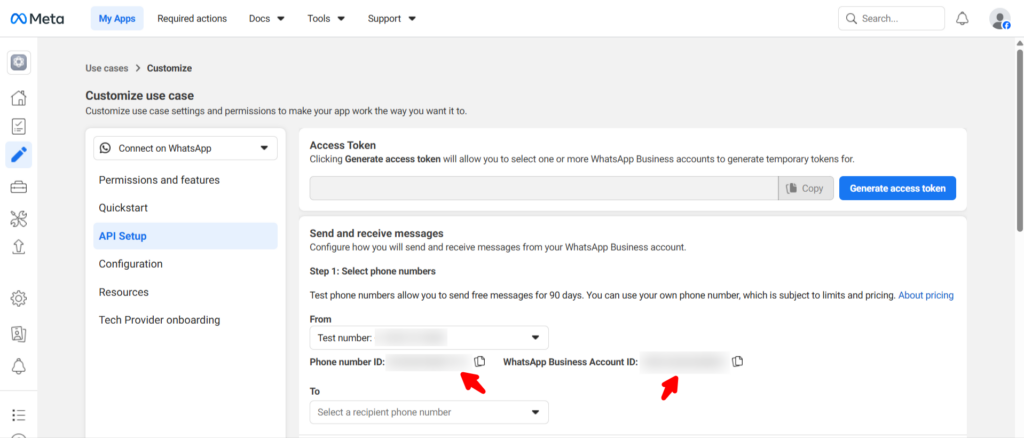
- In WhatsApp → Getting Started, locate your phone number.
- Copy the Phone Number ID shown next to it.
This is a long numeric value.
If you later add a live business number, be sure to use the correct Phone Number ID for that number.
WHATSAPP BUSINESS ACCOUNT ID (WABA ID)
- In WhatsApp → Getting Started, find:
WhatsApp Business Account ID - Copy the numeric ID.
This will be required inside QuillCRM.
APP SECRET
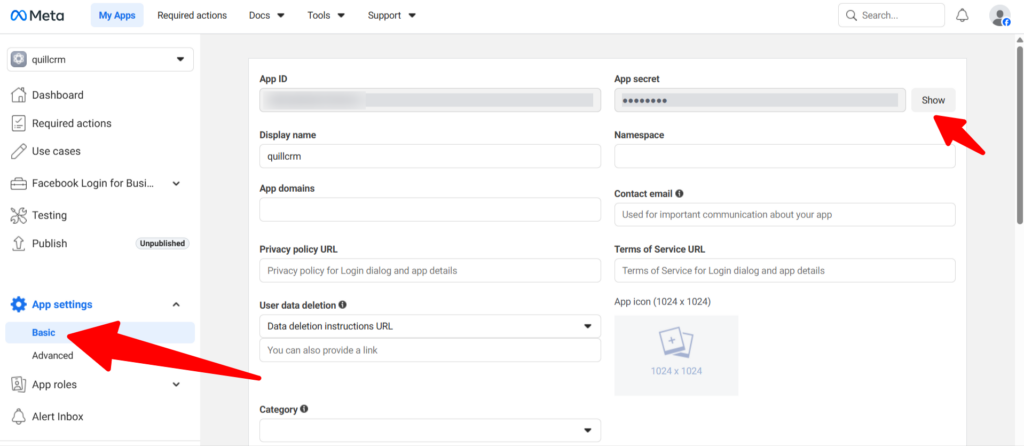
- In App settings -> Basic, find: App Secret
- click show and copy it. This will be required inside QuillCRM.
STEP 4: CONFIGURE QUILLCRM PRO
- Log in to your WordPress admin dashboard.
- Navigate to:
QuillCRM → Settings - Open the Integrations tab.
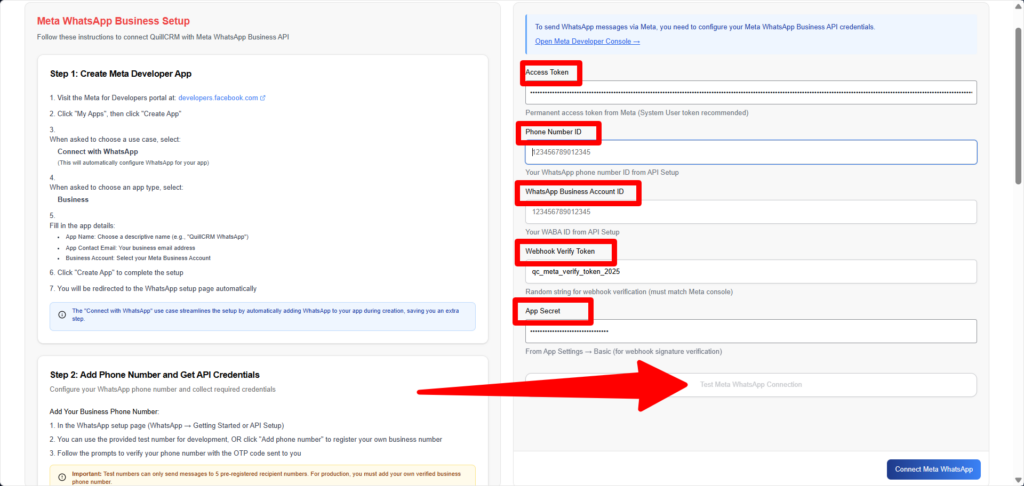
- Locate “Meta WhatsApp” and click “Configure”.
- Enter the required credentials:
• Access Token
• Phone Number ID
• WhatsApp Business Account ID (WABA ID) - Click “Save Settings”.
- Click “Test Connection” to confirm everything is working.
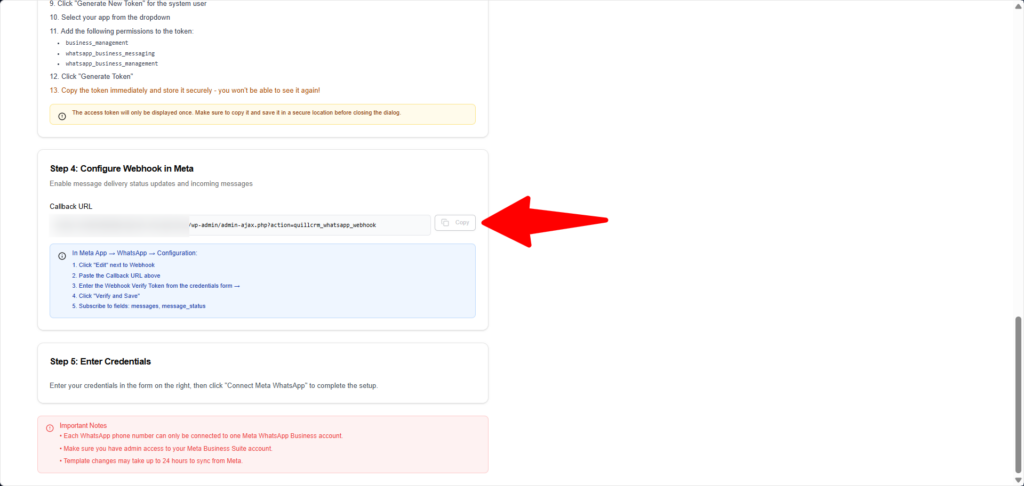
STEP 5: SET UP WEBHOOKS (OPTIONAL BUT RECOMMENDED)
Webhooks allow QuillCRM to receive incoming messages and delivery status updates.
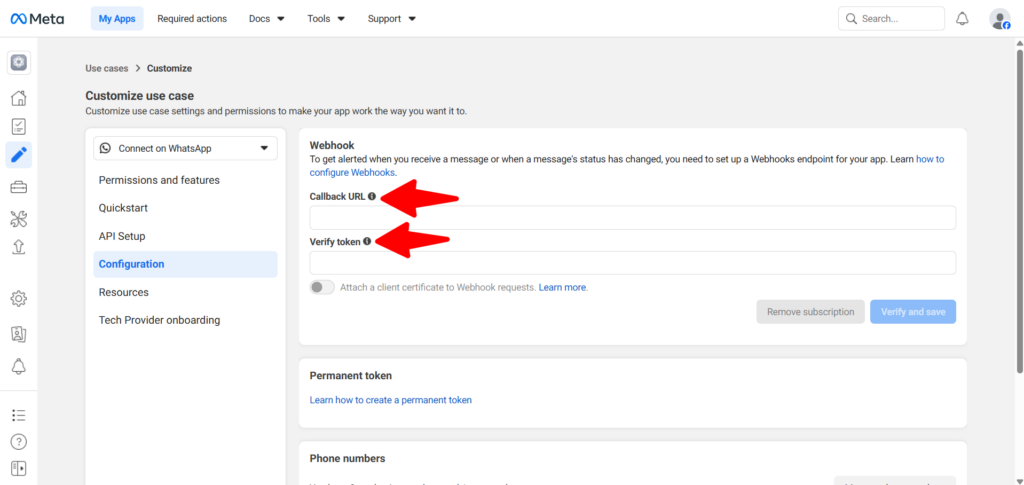
META CONFIGURATION:
- In your Meta app dashboard, go to:
WhatsApp → Configuration - Click “Edit” next to Webhooks.
- Enter the Webhook URL
- Set a Verify Token (any random string).
- Subscribe to these fields:
• messages - Click “Verify and Save”.
QUILLCRM CONFIGURATION:
- Go to:
QuillCRM → Settings → Integrations → Meta WhatsApp - Enter the same Verify Token.
- Click “Save Settings”.
STEP 6: CREATE MESSAGE TEMPLATES
Meta requires all outbound WhatsApp messages to use approved templates.
- Open Meta Business Manager.
- Navigate to:
WhatsApp Manager → Message Templates - Click “Create Template”.
- Choose a category:
• Marketing – promotions and newsletters
• Utility – order updates and notifications
• Authentication – OTPs and verification codes - Design your template using variables such as:
{{1}}, {{2}}, {{name}}, {{order_id}} - Submit the template for approval.
Approval usually takes between 1 and 24 hours.
Here is full documentation of Meta:https://developers.facebook.com/documentation/business-messaging/whatsapp/templates/overview
TROUBLESHOOTING
INVALID ACCESS TOKEN
• Ensure the token has not expired
• Use a permanent token for production
• Confirm the token includes whatsapp_business_messaging permission
PHONE NUMBER NOT REGISTERED
• Verify the phone number in Meta
• Complete business verification
• Confirm the correct Phone Number ID is used
TEMPLATES NOT SYNCING
• Ensure templates are approved in Meta
• Verify the WABA ID
• Retry syncing after a few minutes
MESSAGES NOT SENDING
• Use approved templates only
• Ensure phone numbers are in E.164 format (+1234567890)
• Check Meta messaging tier limits