






















Send one-to-one WhatsApp messages directly from a contact’s profile.
Supports both template messages (anytime) and free-text session messages
(within 24 hours of the last inbound message).
SENDING A MESSAGE
FROM CONTACT PROFILE
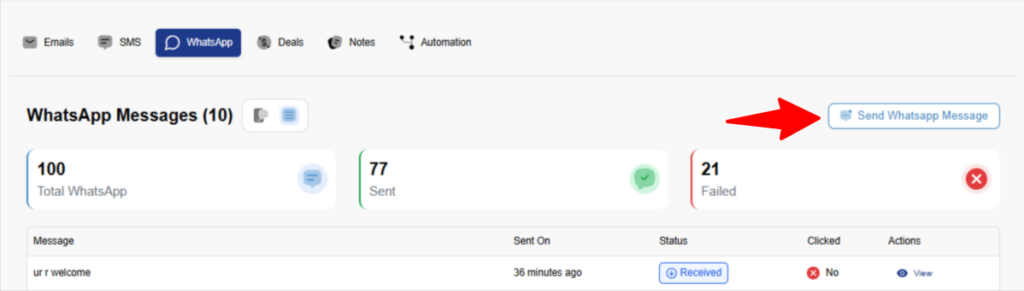
- Go to: Contacts → [Contact Name]
- Open the WhatsApp tab
- Make sure contact has WhatsApp number
- Make sure Meta API is connected
- Click “Send WhatsApp Message”
MESSAGE TYPES
| TYPE | AVAILABILITY | TEMPLATE REQUIRED |
|---|---|---|
| Template Message | Anytime | Yes (Meta-approved) |
| Session Message | Within 24h of last inbound message | No (free-text) |
QuillCRM automatically determines which message type is allowed
based on the active conversation window.
TEMPLATE MESSAGES
Used to start a conversation or when the 24-hour session window expires.
HOW TO SEND
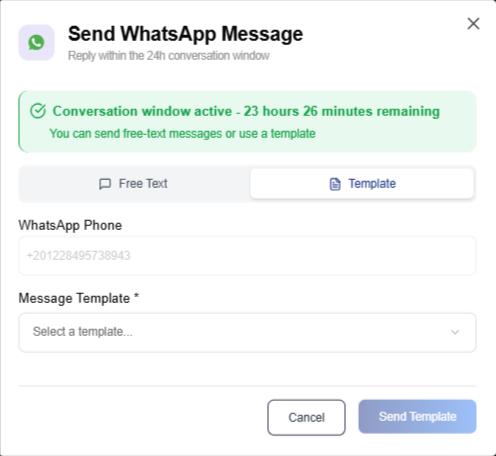
- Click “Send WhatsApp Message”
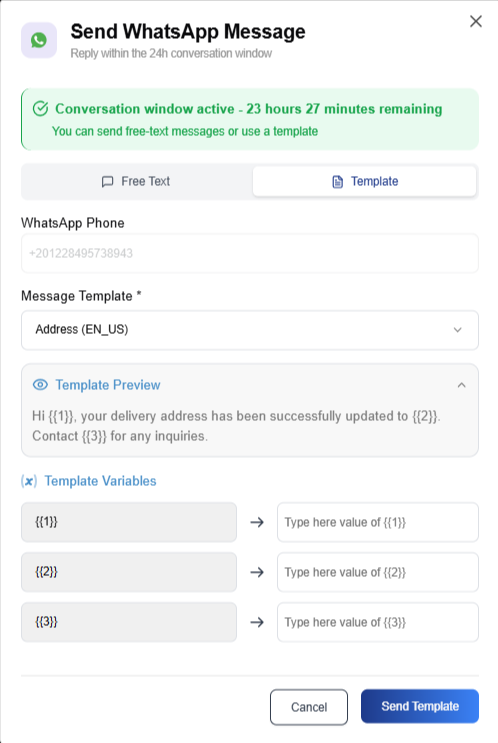
- Select a template from the dropdown
- Review or edit variable values if needed
- Click “Send”
VARIABLE MAPPING
Templates include placeholders such as {{1}}, {{2}} or string variables such as {{name}}.
| VARIABLE | SOURCE |
|---|---|
| {{1}} | Contact first name |
| {{2}} | Custom field or static value |
Values can be overridden before sending
without modifying the contact record.
SESSION MESSAGES (FREE-TEXT)
Available when the contact has sent you a message
within the last 24 hours.
HOW TO SEND
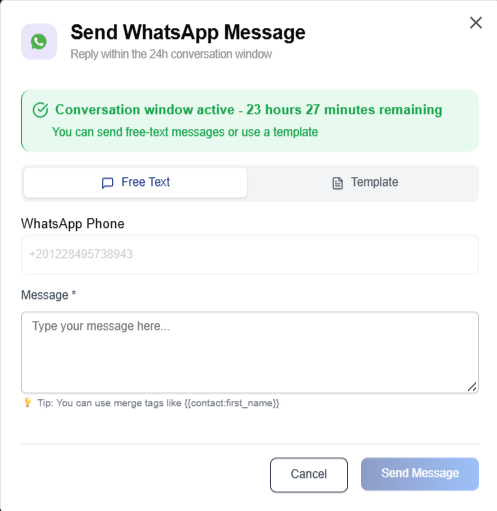
- A green indicator shows: “24h window active”
- Type your message in the text box
- Click “Send”
CHAT VIEW
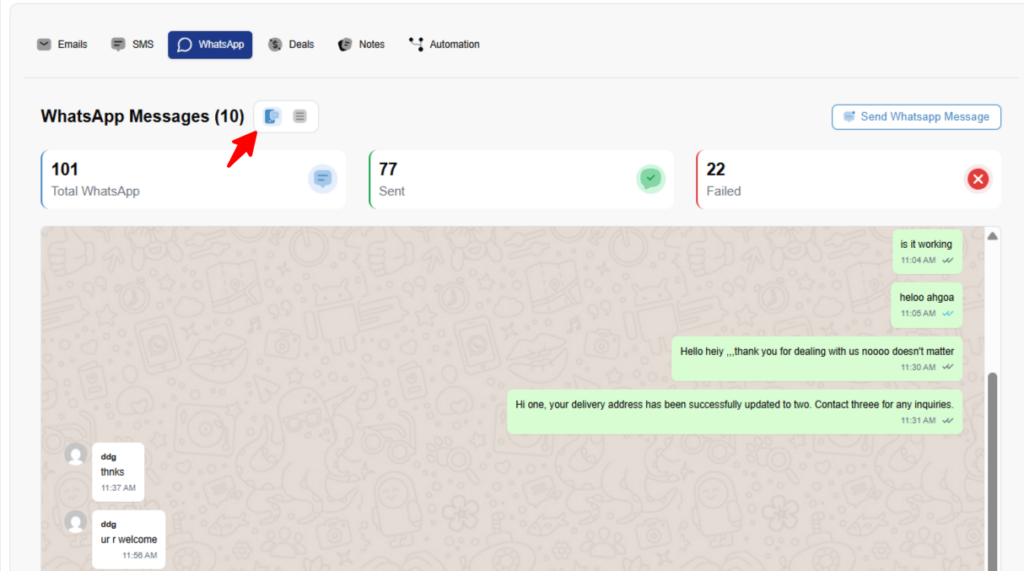
The WhatsApp tab displays the full conversation history.
- Incoming messages (from contact) appear on the left
- Outgoing messages (from you) appear on the right
MESSAGE STATUS INDICATORS
✓ Sent
✓✓ Delivered (gray)
✓✓ Read (blue)
❌ Failed (red)
You can switch between Chat View and Table View
using the view toggle icons.
REQUIREMENTS
- Contact must have a whatsapp_phone field set
Format: E.164 (example: +1234567890) - Meta WhatsApp integration must be configured
- For template messages:
Template must be approved by Meta and synced
COMMON ISSUES
| ERROR | SOLUTION |
|---|---|
| Phone not on WhatsApp | Verify phone format and WhatsApp registration |
| Must use template | 24h window expired — select an approved template |
| Template not found | make sure your meta account has WhatsApp Templates |