






















Sequence steps are the individual emails that make up your email sequence. Each step defines what email to send and when to send it relative to the contact’s enrollment time. This guide covers how to add, configure, and manage steps in your sequence.
Adding a New Step
From the sequence detail page, click the “Add Step” button. A modal will appear with the following configuration options:
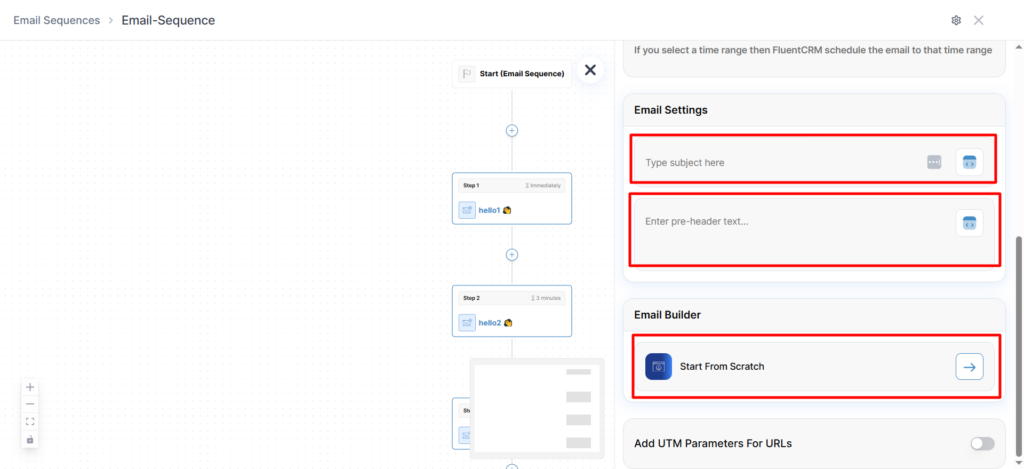
Email Content
- Subject Line: The subject of the email for this step. You can use merge tags (e.g.,
{{contact.first_name}}) to personalize the subject. - Pre-header Text: The preview text that appears after the subject line in email clients.
- Email Body: Design your email content using Quill CRM’s email template editor. You can choose from existing templates or create a new design.
Timing Settings
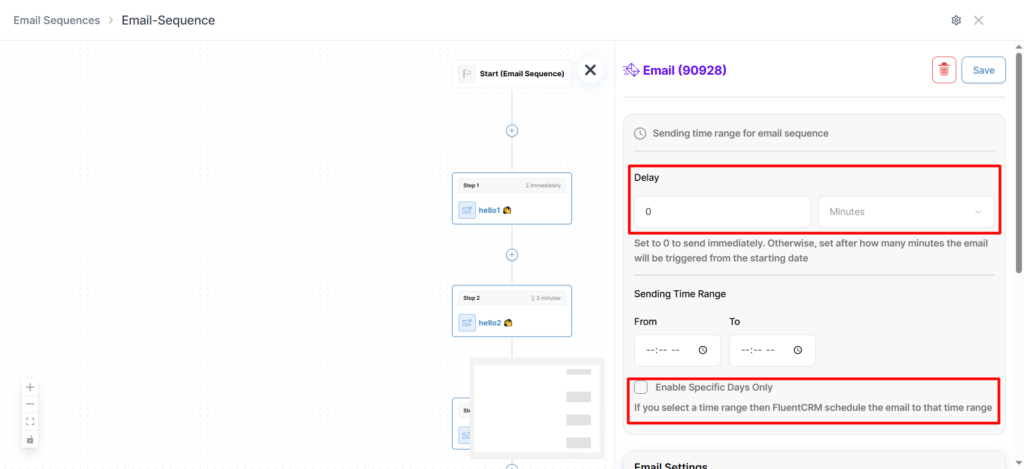
- Delay: Set how long to wait after the contact’s enrollment before sending this step. You can specify the delay in:
- Minutes — For immediate or near-immediate follow-ups.
- Hours — For same-day follow-ups.
- Days — For multi-day drip sequences (most common).
For example, if Step 1 has a delay of 0 days (immediate), Step 2 has a delay of 2 days, and Step 3 has a delay of 5 days, then a contact enrolled on Monday will receive:
- Step 1: Monday (immediately)
- Step 2: Wednesday (2 days later)
- Step 3: Saturday (5 days later)
Send Window (Optional)
You can restrict when emails are sent by configuring the send window:
- Enable Specific Days: Toggle this on to select which days of the week this step can be sent (e.g., Monday through Friday only). If the calculated send time falls on a non-allowed day, the system will wait until the next allowed day.
- Sending Time Range: Define a time window during which the email can be sent (e.g., from 9:00 AM to 5:00 PM). The system supports overnight ranges (e.g., 10:00 PM to 6:00 AM) as well. If the calculated send time falls outside this window, the email will be held until the window opens.
Editing a Step
Click on any existing step in the flow chart view to open it for editing. You can modify all settings including the subject, content, delay, and send window. Changes will apply to future sends — contacts who have already received the step will not be affected.
Understanding the Flow Chart
The sequence detail page displays your steps in a visual flow chart format. This shows:
- The order of steps from top to bottom.
- The delay between each step.
- The status of each step (draft, active, completed).
Steps are automatically ordered by their delay value, with the shortest delay at the top.
Viewing Step Reports
For each step, you can view detailed performance reports by clicking the reports icon. The reports show:
| Metric | Description |
|---|---|
| Sent Rate | Percentage of enrolled contacts who have been sent this step. |
| Open Rate | Percentage of sent emails that were opened. |
| Click Rate | Percentage of sent emails where a link was clicked. |
The detailed view also shows per-contact data including:
- Sent At: When the email was delivered.
- Opened At: When the contact opened the email.
- Clicked At: When the contact clicked a link.
- Status: Current delivery status (Pending, Sent, Failed, Delivered, Scheduled).
Step Statuses
| Status | Description |
|---|---|
| Draft | The step is not yet active. It will not be processed even if contacts are enrolled. |
| Active | The step is live and will send to eligible contacts at the scheduled time. |
| Completed | All enrolled contacts have been sent this step (or permanently failed), and no more sends are pending. |
Retry Logic for Failed Sends
If an email fails to send for a particular contact, Quill CRM will automatically retry up to 3 times. The system distinguishes between:
- Transient failures: Temporary issues (e.g., server timeout) that may succeed on retry.
- Permanent failures: Issues that will not resolve on retry (e.g., invalid email address).
After 3 failed attempts, the send is marked as permanently failed for that contact.
Automatic Contact Removal
During processing, the system automatically checks for contacts who should be removed from the sequence:
- Unsubscribed contacts: If a contact’s email status changes to anything other than “subscribed”, they are removed with the reason “unsubscribed”.
- Bounced contacts: If a contact’s email has bounced, they are removed with the reason “bounced”.
- Empty/invalid emails: Contacts with no email address are removed.
Removed contacts will not receive any further steps in the sequence.