






















Quill CRM can import your contacts from HubSpot using the HubSpot Private App API. This brings in your contact properties, list memberships, and engagement status.
Prerequisites
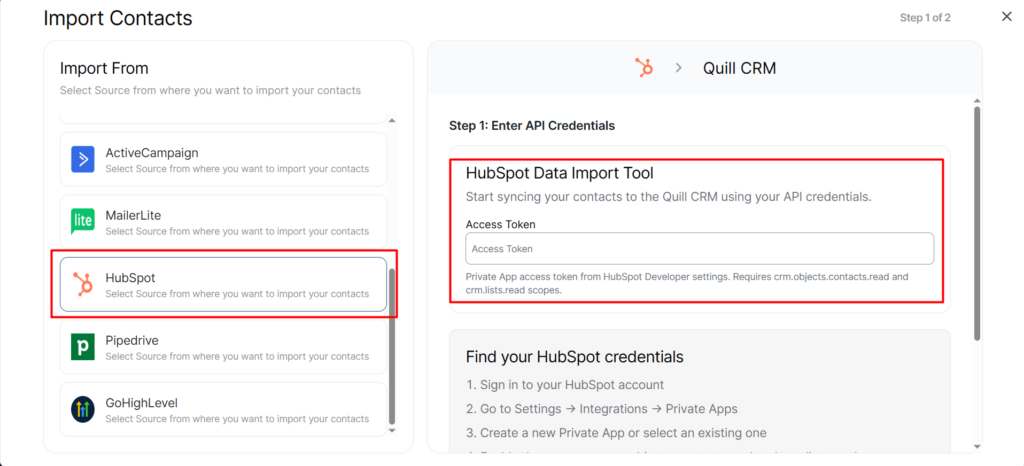
- A HubSpot Private App Access Token. To create one, go to your HubSpot account → Settings → Integrations → Private Apps and create a new app with the CRM Contacts scope (read access).
How to Import
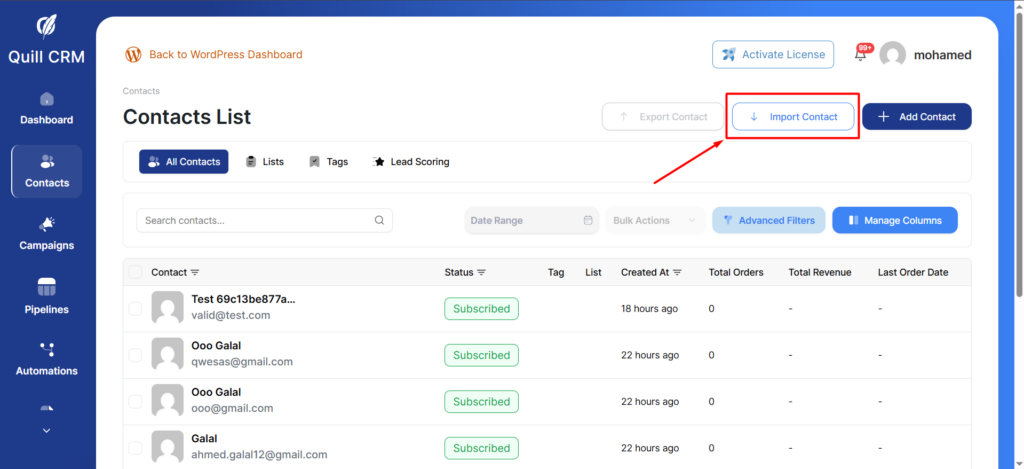
- Go to Quill CRM → Contacts and click “Import”.
- Select “HubSpot” from the source list.
- Enter your Access Token in the credentials form.
- Click “Connect & Fetch Data”. Quill CRM connects to HubSpot and retrieves your contact count and available lists.
- Configure Lists Mapping — map HubSpot lists to Quill CRM lists (or auto-create).
- Set Contact Profile options.
- Click “Import”.
What Gets Imported
| HubSpot Property | Quill CRM Field |
|---|---|
| firstname | First Name |
| lastname | Last Name |
| phone | Phone |
| address | Address |
| city | City |
| state | State |
| country | Country |
| zip | Zip |
Status Mapping
HubSpot’s hs_lead_status property is used to determine the email subscription status in Quill CRM.
Custom Properties
Additional HubSpot properties beyond the standard fields can be mapped to Quill CRM custom fields via the Custom Fields Mapping section.
Important Notes
- HubSpot import uses cursor-based pagination for efficient retrieval of large contact databases.
- Tags are not imported from HubSpot (the Tags Mapping section is hidden for HubSpot imports). Only list memberships are transferred.
- Make sure your Private App has sufficient scopes to read contacts and list memberships.