






















If you are using MemberPress on your WordPress site, Quill CRM can import all your MemberPress members directly — including their first name, last name, email, and membership levels. No API keys are needed since MemberPress runs on the same WordPress installation.
Prerequisites
- The MemberPress plugin must be installed and active on the same WordPress site as Quill CRM.
- MemberPress must have at least one member with a completed transaction.
If MemberPress is not active, this import source will not appear in the source list.
How to Import
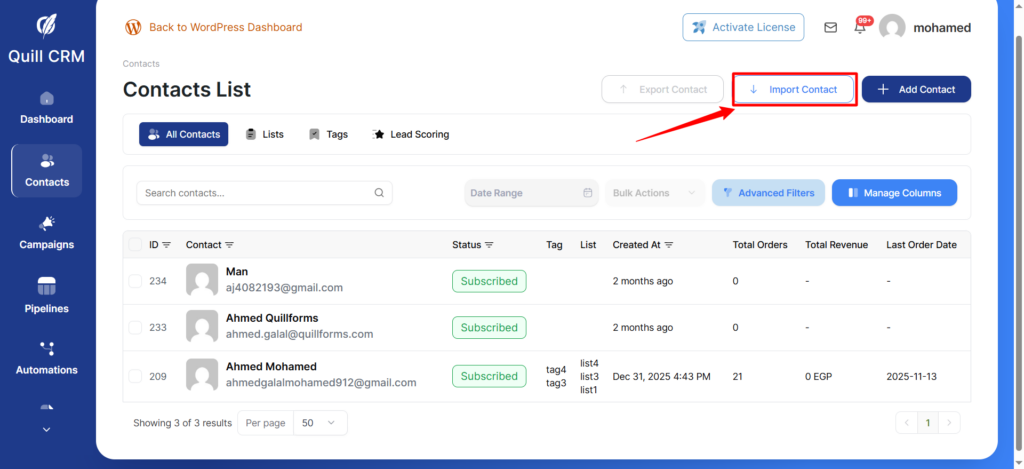
- Go to Quill CRM → Contacts and click “Import”.
- Select “MemberPress” from the source list. Quill CRM will automatically connect to your MemberPress database and load your membership levels.
- Optionally, use the Filter by Membership selector to choose which membership levels to import (see below).
- Configure your Memberships to Lists Mapping and Memberships to Tags Mapping (see below).
- Set your Contact Profile options (lists, tags, status, update existing).
- Click “Import” to start.
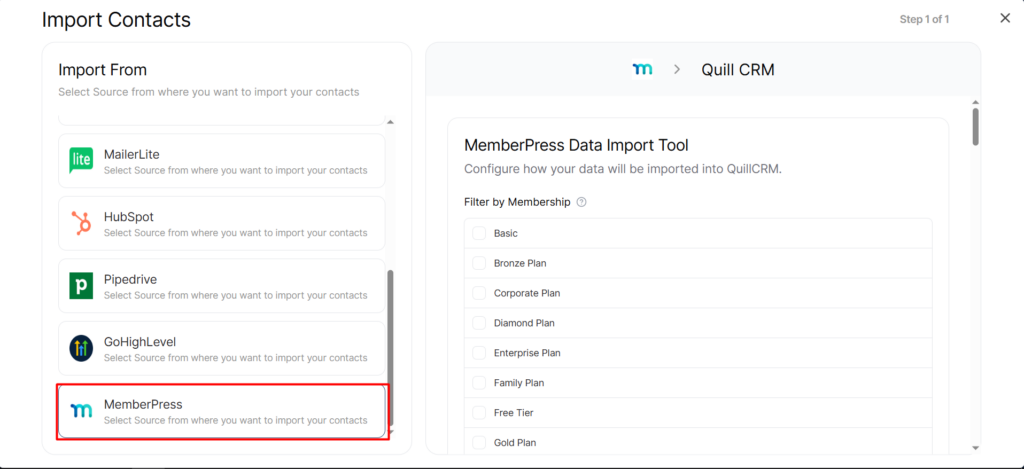
Field Mapping
The following MemberPress fields are automatically mapped to Quill CRM contact fields:
Filter by Membership
The Filter by Membership option allows you to select which MemberPress membership levels to import. Only members with a completed transaction for the selected memberships will be imported.
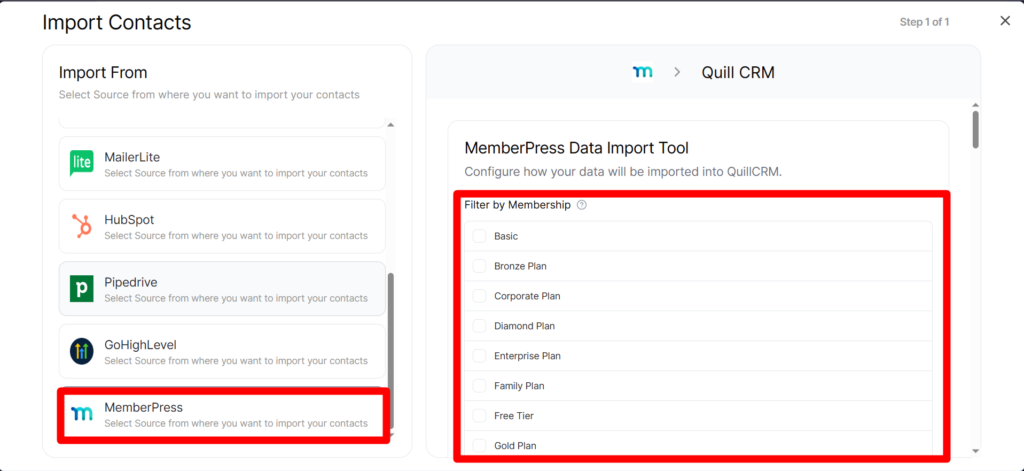
- If no memberships are selected, all members will be imported regardless of their membership level.
- You can select one or more membership levels using the checkboxes provided.
- Selected memberships appear as badges at the top, and can be removed by clicking the X button.
Memberships to Lists Mapping
MemberPress membership levels can be mapped to Quill CRM lists. For each membership level (e.g., Gold, Basic), you can:
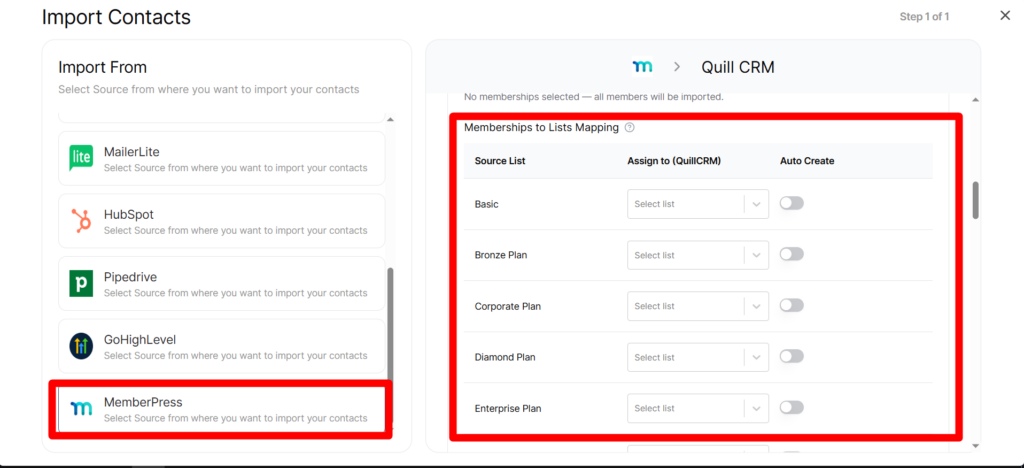
- Assign to (QuillCRM) — Choose one or more existing Quill CRM lists to add contacts to.
- Auto Create — Automatically create a new Quill CRM list with the same name as the membership.
Contacts will only be added to lists for memberships they have a completed transaction for.
Memberships to Tags Mapping
MemberPress membership levels can also be mapped to Quill CRM tags. For each membership level, you can:
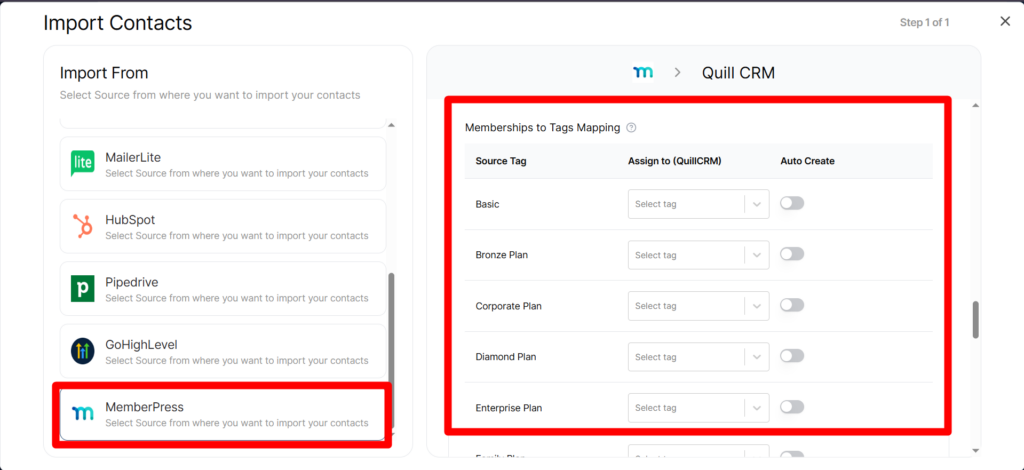
- Assign to (QuillCRM) — Choose one or more existing Quill CRM tags to apply to contacts.
- Auto Create — Automatically create a new Quill CRM tag with the same name as the membership.
Contacts will only receive tags for memberships they have a completed transaction for.
Duplicate Handling
Contacts are matched by email address. If a MemberPress member already exists in Quill CRM:
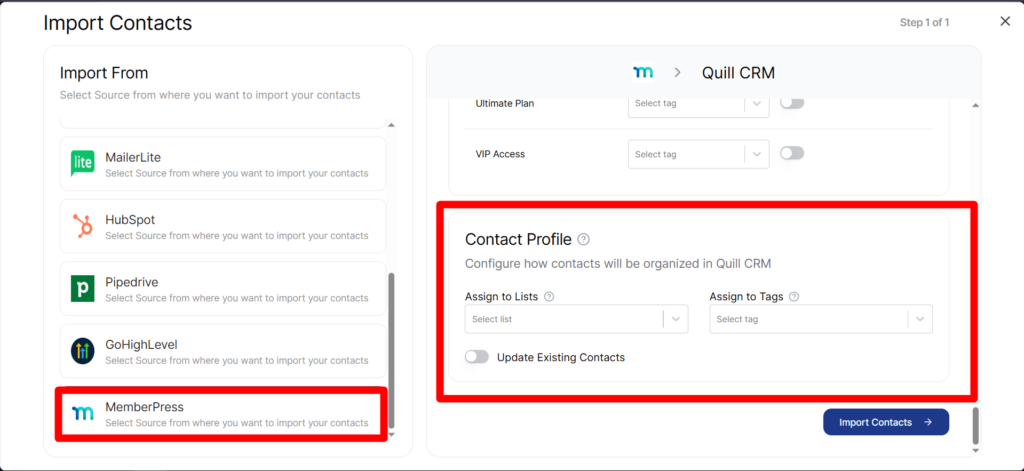
- Update Existing enabled: The existing contact is updated with MemberPress data.
- Update Existing disabled: The contact is skipped.