






















Paid Memberships Pro (PMPro) is one of the most established and flexible membership plugins for WordPress. It enables you to create membership levels, restrict content, accept payments, and manage member subscriptions directly from your WordPress site.
Quill CRM integrates seamlessly with Paid Memberships Pro to help you automate your membership workflows. Whether you want to send welcome emails when a user completes checkout, tag contacts when their membership expires, or segment users based on their active membership level — it’s all possible with this integration.
You must have the Paid Memberships Pro plugin installed and activated on your WordPress site for the related triggers, actions, conditions, and merge tags to appear in the automation builder.
Triggers
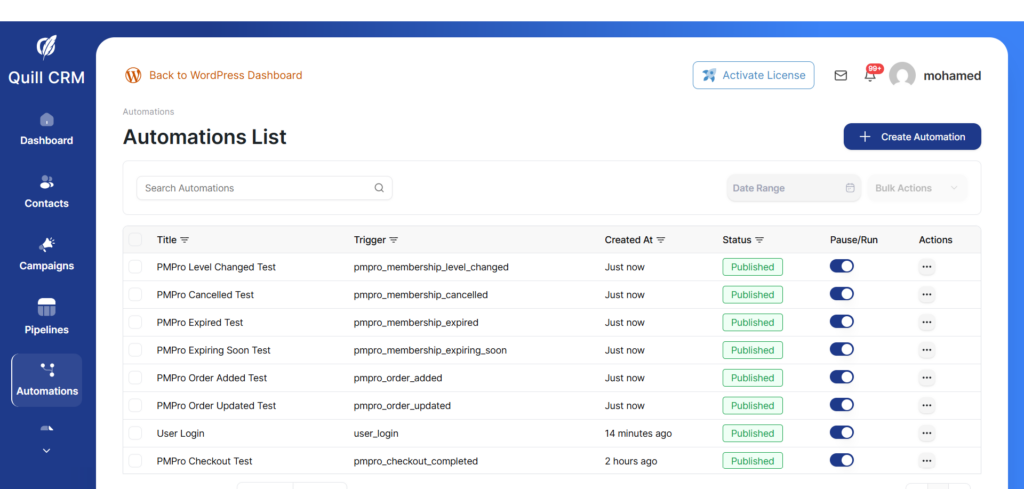
Triggers are the events that start your automation. Here are the triggers available with the Paid Memberships Pro integration:
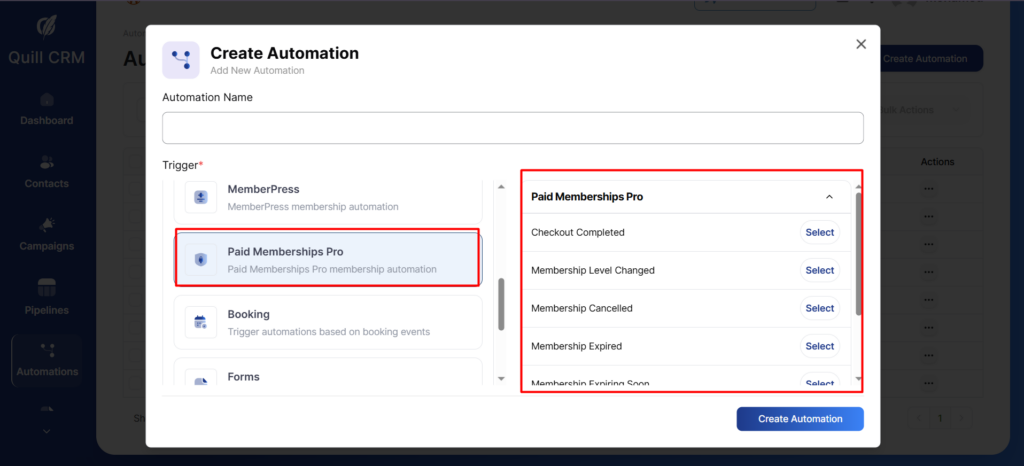
- Checkout Completed: This trigger fires when a user completes a membership checkout in Paid Memberships Pro. You can optionally filter by specific membership levels. The trigger captures order details such as order ID, order code, subtotal, tax, total, payment type, gateway, and status.
- Membership Level Changed: This trigger fires when a user’s membership level is changed from one level to another. It captures both the new membership level and the previous (old) membership level, allowing you to create targeted automations for upgrades, downgrades, or level switches.
- Membership Cancelled: This trigger fires specifically when a user’s membership is cancelled (i.e., their level is set to none). It captures the cancelled membership level details so you can send win-back campaigns or update contact records accordingly.
- Membership Expired: This trigger fires when a user’s membership expires due to the membership’s configured expiration settings. Use this to send renewal reminders, remove tags, or update a contact’s status in your CRM.
- Membership Expiring Soon: This trigger fires before a membership expires, based on PMPro’s pre-expiration cron schedule. This is ideal for sending proactive renewal reminders to members before they lose access.
- Order Added: This trigger fires when a new order is created in Paid Memberships Pro. It captures full order details including the membership level, order amounts, payment gateway, and order status.
- Order Updated: This trigger fires when an existing order is updated in Paid Memberships Pro (e.g., status changed to refunded). It captures the updated order details so you can automate follow-up actions like sending refund confirmations.
Actions
Actions are the tasks your automation performs when a trigger fires. The following actions are available with Paid Memberships Pro:
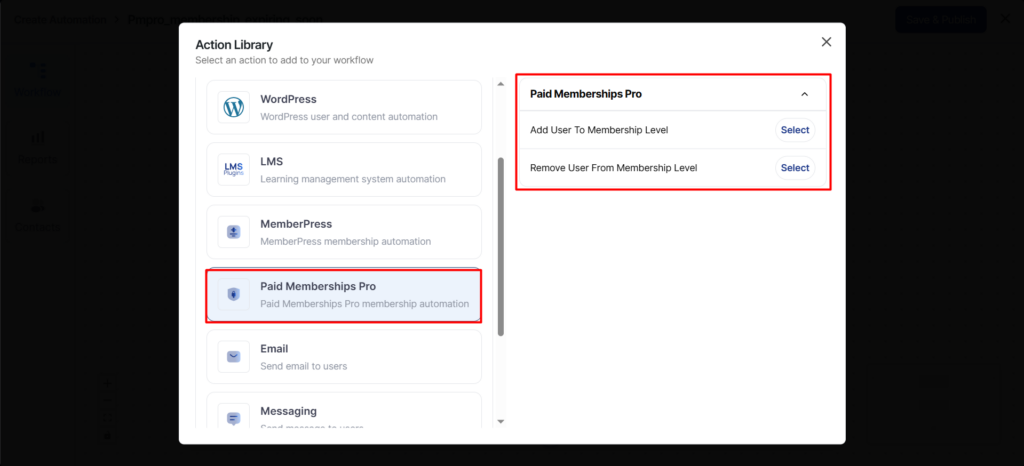
- Add User to Membership Level: This action assigns a specific PMPro membership level to a user. Simply select the target membership level from the dropdown. This is useful for granting access based on form submissions, purchases from other plugins, or any other automation trigger.
- Remove User from Membership Level: This action cancels a user’s membership. You can choose between two modes:
- Cancel all membership levels — Removes the user from all active memberships.
- Cancel specific membership level — Only cancels the selected membership level if the user currently holds it.
Conditions (Rules)
Conditions allow you to add logic to your automations so that actions are only executed when specific criteria are met. The following PMPro-specific conditions are available:
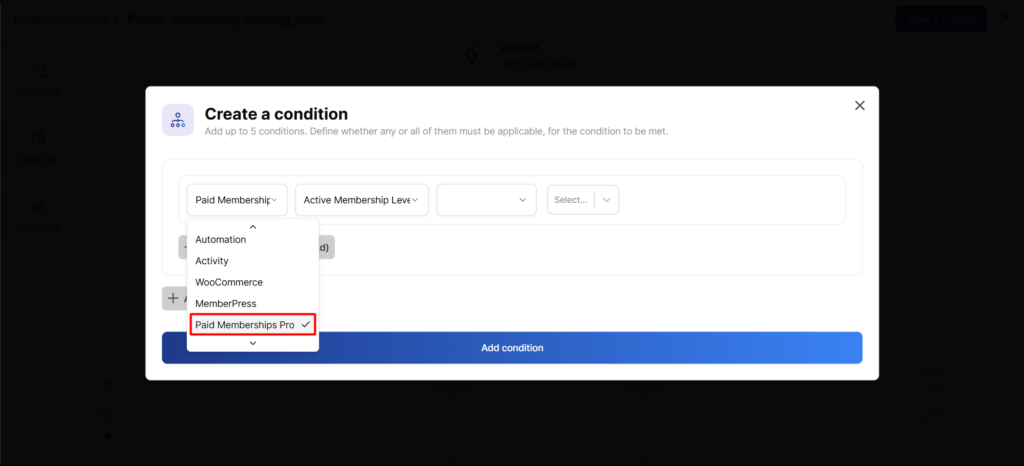
- Membership Level: Check the membership level from the trigger data. Supports
IsandIs notoperators. The dropdown lists all your configured PMPro membership levels. This condition is available for all PMPro triggers. - Active Membership Levels: Check which membership levels a user currently has active in PMPro (live lookup, not from trigger data). Supports
includes,does not include,includes all, andincludes none ofoperators. This is useful for cross-checking a user’s current membership status regardless of what triggered the automation. - Order Status: Check the order status from the trigger data. Supports
IsandIs notoperators with the following statuses: Success, Cancelled, Pending, Refunded, Error, Review, and Token. Available for checkout and order triggers. - Order Total: Check the order total amount from the trigger data. Supports
Is,Is not,Greater than, andLower thanoperators. This lets you create automations that only fire for high-value or low-value orders. Available for checkout and order triggers.
Merge Tags
Merge tags let you personalize your email content, SMS messages, and other communications with dynamic data from Paid Memberships Pro. The following merge tags are available:
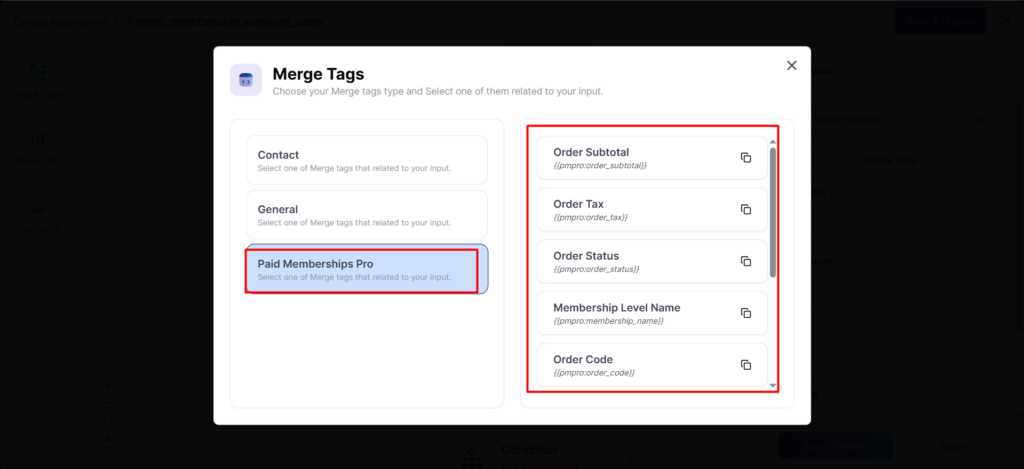
| Merge Tag | Description | Syntax |
|---|---|---|
| Membership Level Name | Outputs the name of the membership level associated with the event (e.g., “Gold Membership”). | {{membership_name}} |
| Membership Level ID | Outputs the unique ID of the membership level. | {{membership_id}} |
| Order ID | Outputs the unique ID of the PMPro order. | {{order_id}} |
| Order Code | Outputs the unique order code generated by PMPro. | {{order_code}} |
| Order Total | Outputs the total amount of the order (including tax). | {{order_total}} |
| Order Subtotal | Outputs the subtotal amount of the order (before tax). | {{order_subtotal}} |
| Order Tax | Outputs the tax amount of the order. | {{order_tax}} |
| Order Status | Outputs the current status of the order (e.g., Success, Refunded, Cancelled). | {{order_status}} |
| Payment Gateway | Outputs the payment gateway used for the order (e.g., Stripe, PayPal). | {{payment_gateway}} |
You can use these merge tags in your email templates, SMS messages, and other communication channels within your automations to deliver highly personalized messages to your members.
Getting Started
To start using Paid Memberships Pro with Quill CRM:
- Install and activate the Paid Memberships Pro plugin on your WordPress site.
- Create your membership levels in PMPro under Memberships → Settings → Levels.
- Navigate to Quill CRM → Automations and create a new automation.
- Select one of the Paid Memberships Pro triggers from the trigger library.
- Add actions, conditions, and merge tags as needed to build your workflow.
- Activate your automation and you’re all set!