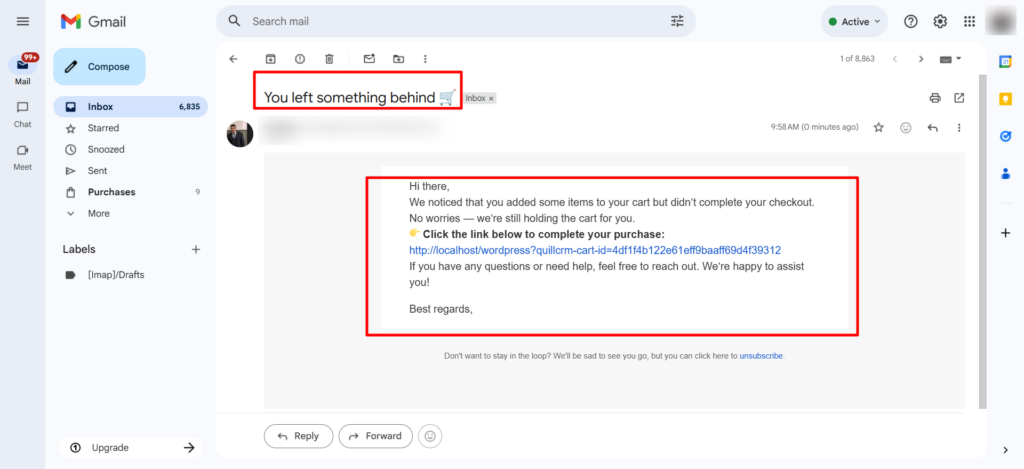
Abandoned Cart Automation is a workflow that automatically follows up with customers who add products to their cart but leave without completing the checkout. It helps recover lost sales by sending timely reminders, offers, or incentives (such as emails or SMS) to encourage customers to return and complete their purchase.
How Does the Cart Abandonment Feature Work?
You can capture the cart and customer details using FunnelKit Automations’ Cart Abandonment feature.
However, for this feature to work, the customer must enter at least their email address on the checkout page.
- Once the email address is entered, the cart is captured and marked as recoverable. At this point, the cart status is set to PENDING.
- After the wait period configured in the cart settings has passed, the cart status changes to IN-PROGRESS. You can refer to the cart settings.
- When the cart status changes to IN-PROGRESS, the customer enters the abandoned cart automation, which then executes the predefined actions.
- The automation continuously monitors whether the customer completes their purchase using the cart recovery link or directly on the website. If the order is placed, the automation automatically stops further actions for that particular contact. No additional setup is required to remove them from the automation.
- For logged-in users, FunnelKit Automations captures the carts as soon as they add a product to the cart. They don’t need to visit the checkout page. Their captured cart will appear on the Recoverable Carts page.
Setting Up Cart Abandonment Automation
Follow the steps to create a cart recovery sequence for your store:
Step 1: Create a new automation.
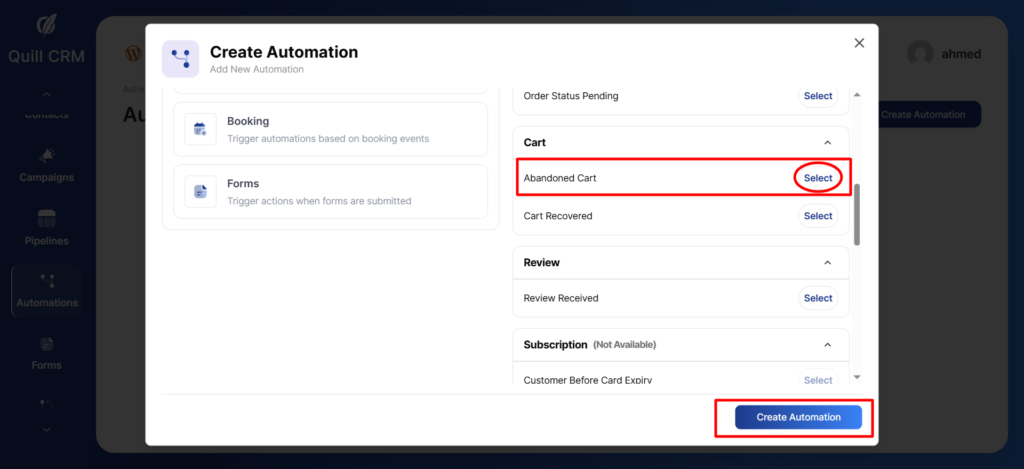
Go to the WooCommerce section and select Abandoned Cart; click on Create Automation.
When you click on the + sign to add an action, you will see seven nodes: Action, Delay, Condition, Goal, and End Automation.
Action—When you want the action to be executed immediately
Condition—When you want an action to be executed after a specified condition is met
Goal – Set a specific goal for your automation
Delay—Specify the delay for different steps in your sequence
End the automation—End the automation
Select the delay and proceed; this will process after 1 hour.
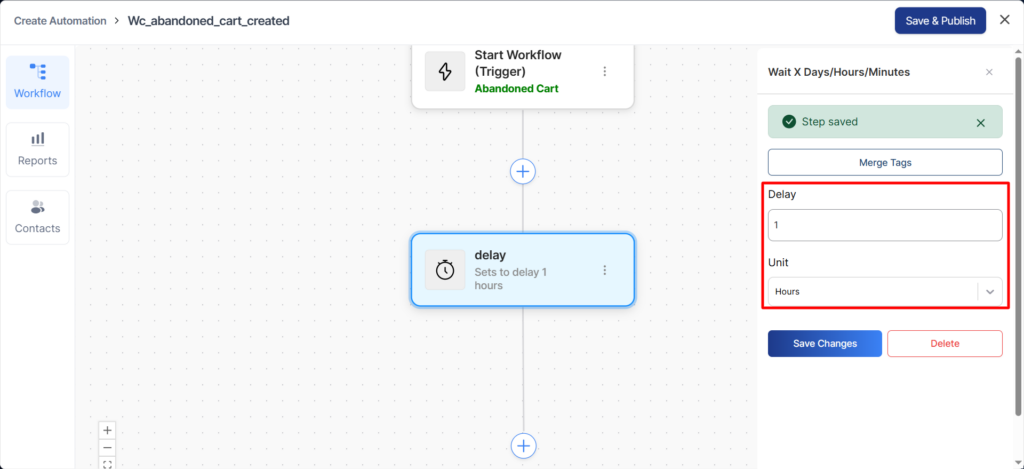
We recommend that you set the delay for your first email anywhere from 30 minutes to 4 hours after cart abandonment.
You can also delay sending the email until a specific time of day or day of the week. This feature allows you to choose your best sending times when you know that your open rate and click-through rates are the highest.
If you want your email to go out only on a chosen day of the week, delay it until that day.
Step 3: Select ‘Send Email’ from the Actions
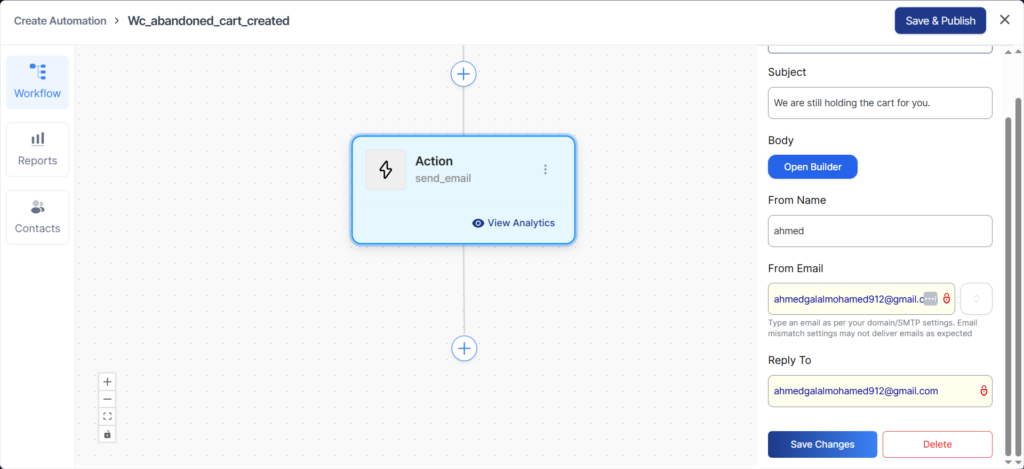
With a body like this.
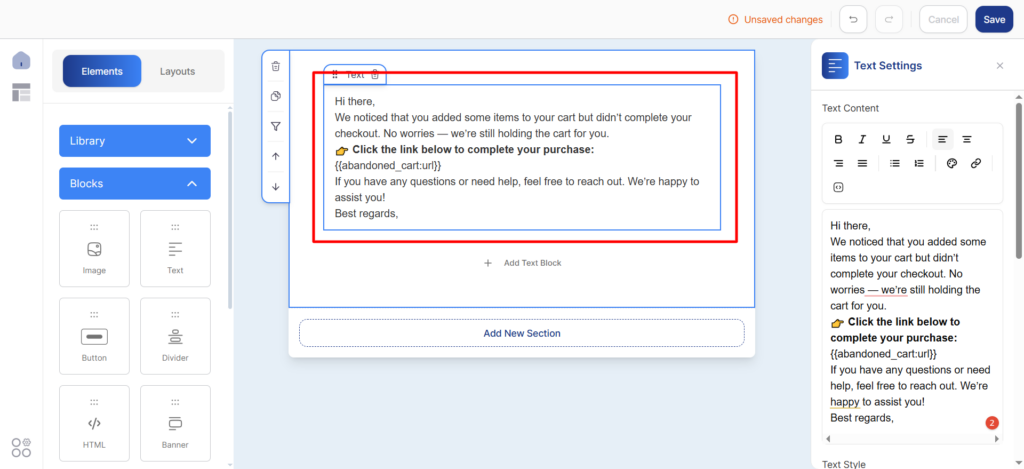
After one hour, an email will be sent to the contact who abandoned the cart.